
How to Integrate PayPal with Innovorise
By connecting your Business PayPal account, you can allow customers to pay for products using PayPal. This page will walk you through the steps to connect Innovorise and your Business PayPal Account.
Covered in this Article:
Prerequisites
Retrieve Your PayPal Test Environment API Credentials
Integrate your PayPal Test Environment and Innovorise
Retrieve Your PayPal Live Environment API Credentials
Integrate your PayPal Live Environment and Innovorise
Prerequisites
You will need access to your Business PayPal Account
Retrieve Your PayPal Test Environment API Credentials
The Innovorise and PayPal Integration will allow you to connect a test environment of PayPal, so you can test your checkout and payment links, as well as a Production or Live environment so that you can receive money from your customers.
This page will walk you through the steps to connect the Test Environment first and then your live PayPal environment next.
The first step you will need to take for both accounts is to head to https://developer.paypal.com/home/ and Log In to your business PayPal account.
Once you are logged into your account on the left hand side click
My Apps and Credentials
At the top of this screen you will see the option to select Sandbox or Live
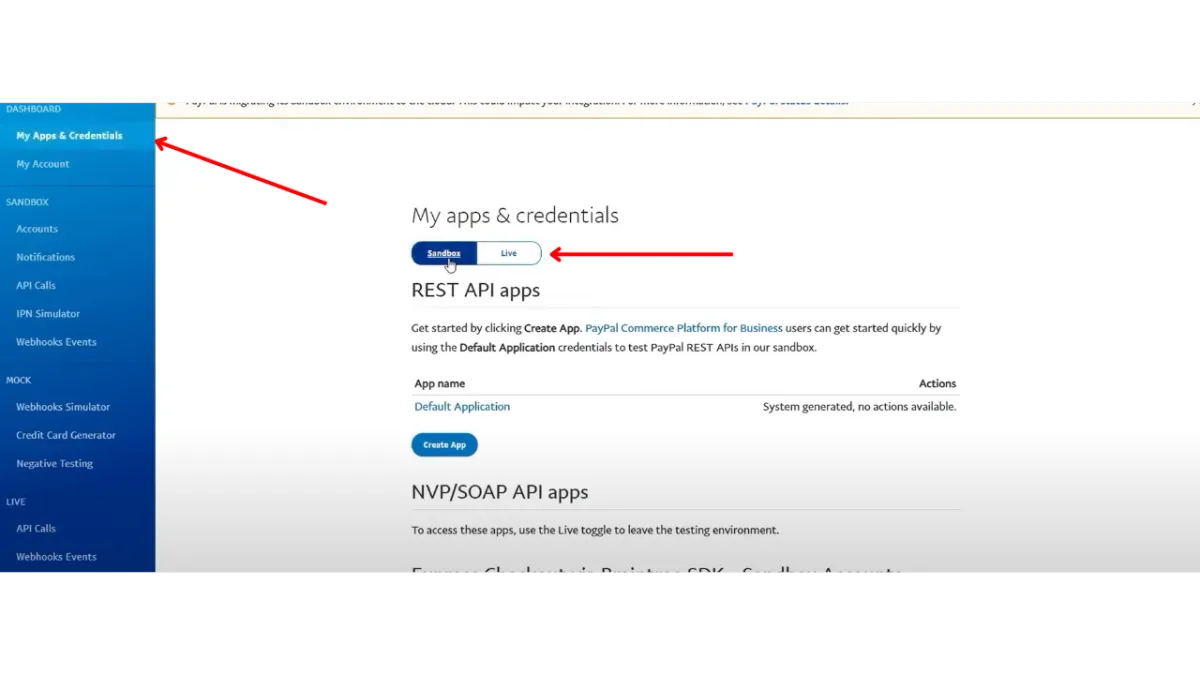
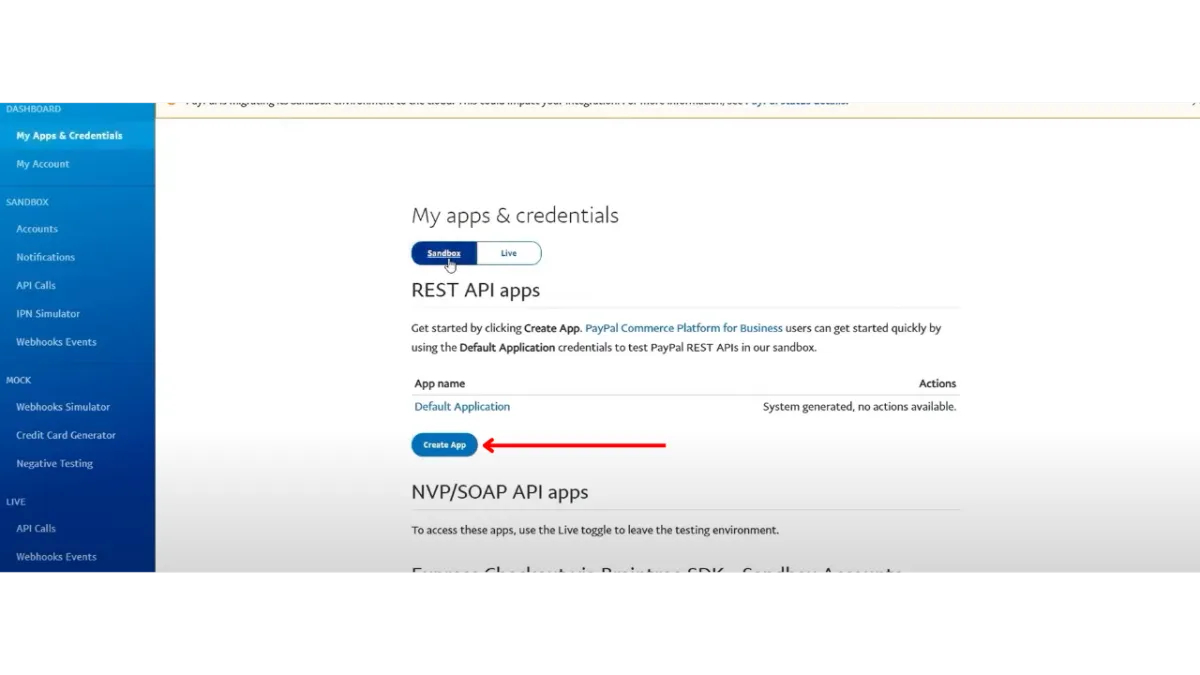
As we are creating your Test environment, ensure that Sandbox is selected. Next click on the Create App button
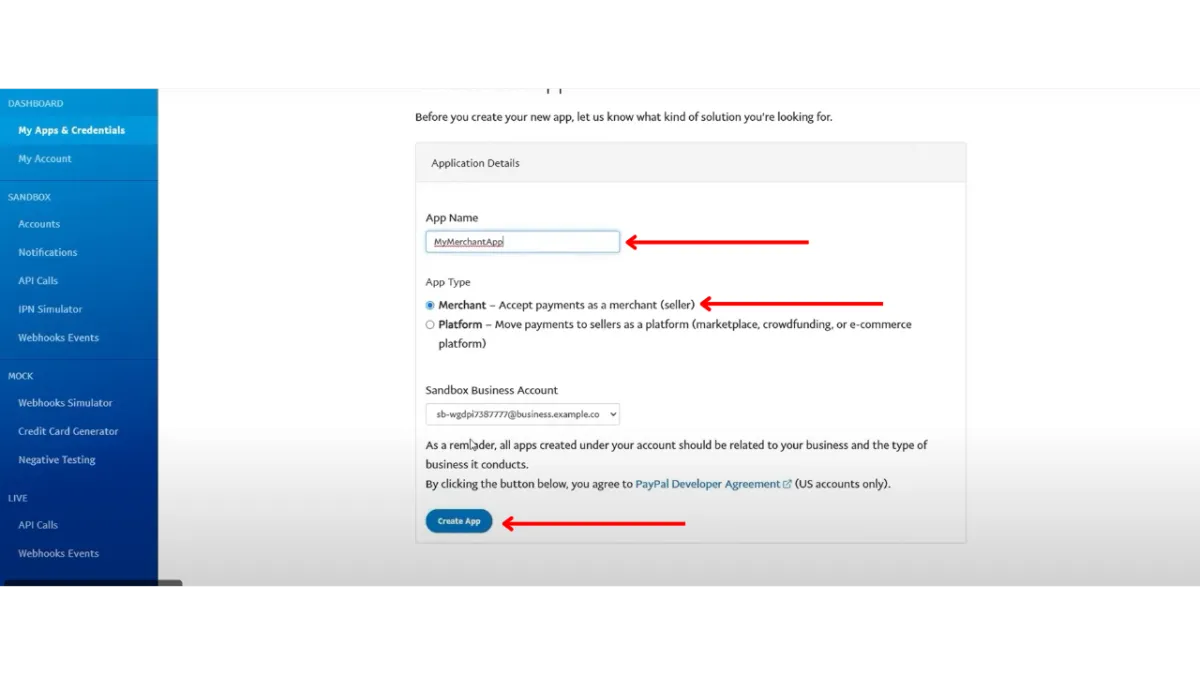
The first step when creating your App is to name your App. It would be best to name the App in relation to your business or the type of business you conduct.
The next step is to ensure that Merchant is selected for App Type.
Then Click Create App button
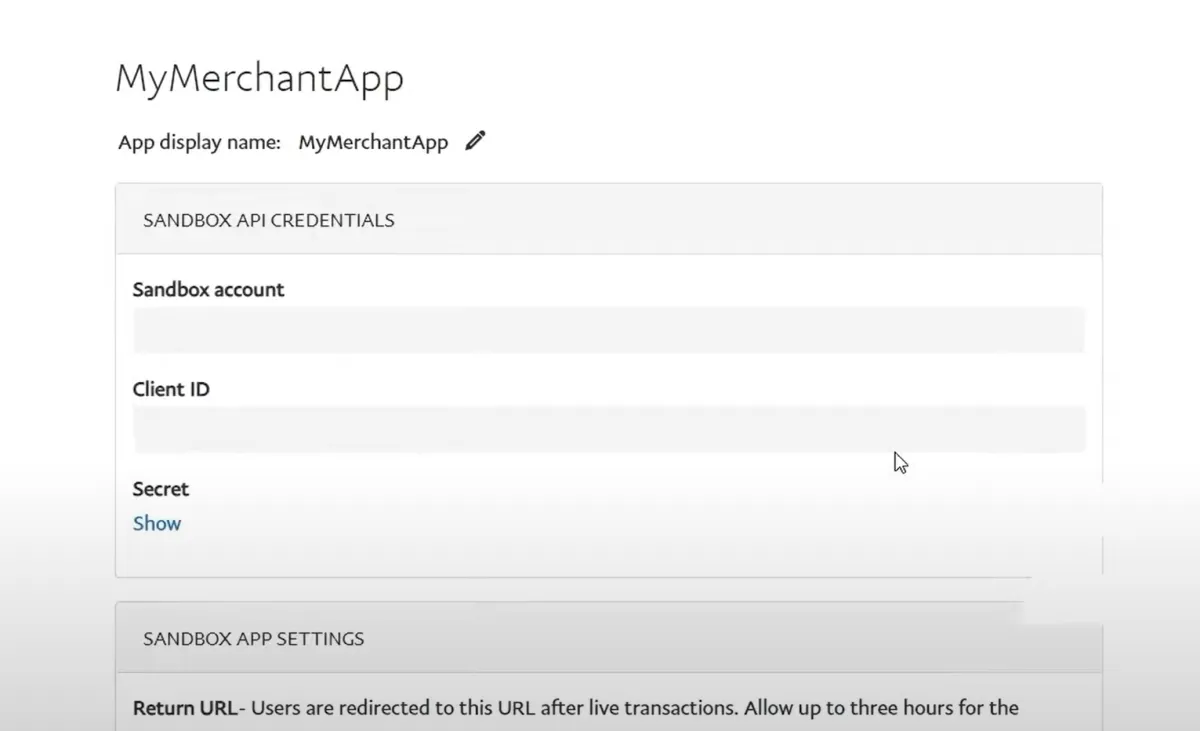
Once the App is Created you will be taken to the Apps Page, here you will see -
Client ID
Secret ID
Integrate your PayPal Test Environment and Innovorise
In a New Tab open Innovorise ensuring you keep your PayPal Open as well you will need this to complete the process.
Once you are logged in -
Click Payments in the Left Hand Menu
Then Click Integrations in the Header
Then Click the Connect Button in the PayPal row
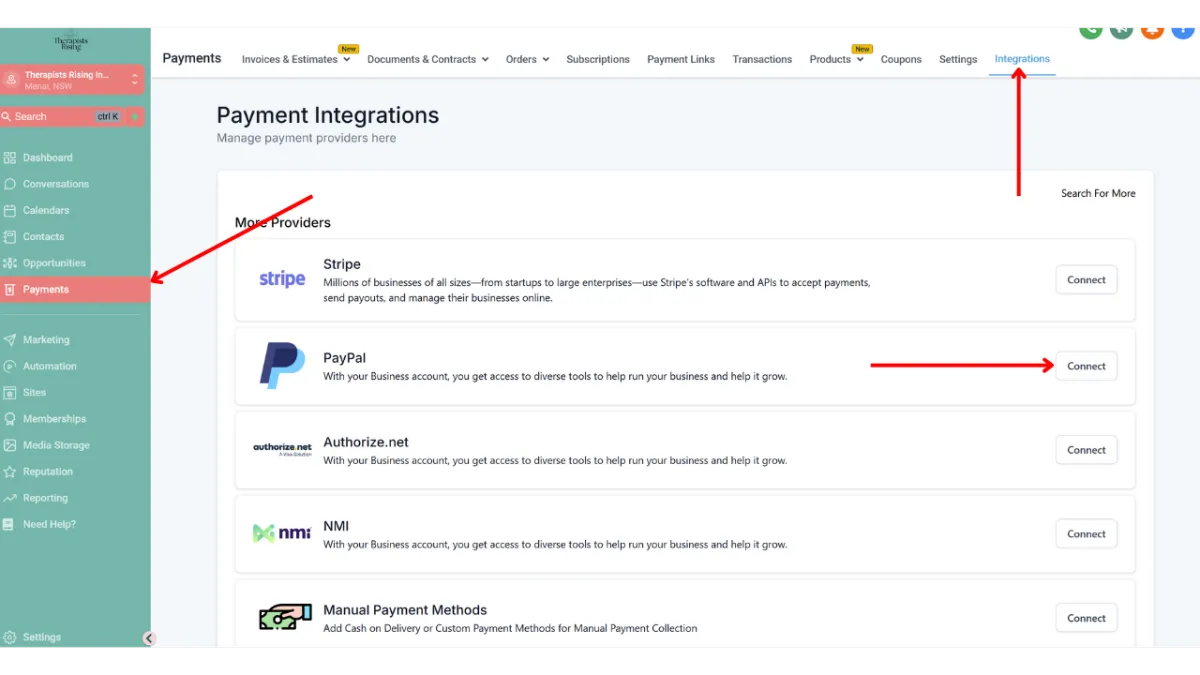
From your PayPal Developers tab copy your
Client ID and paste it into the Sandbox Client ID Box in Innovorise
Secret ID and paste it into the Sandbox Secret ID Box in Innovorise
Then click the Save Button
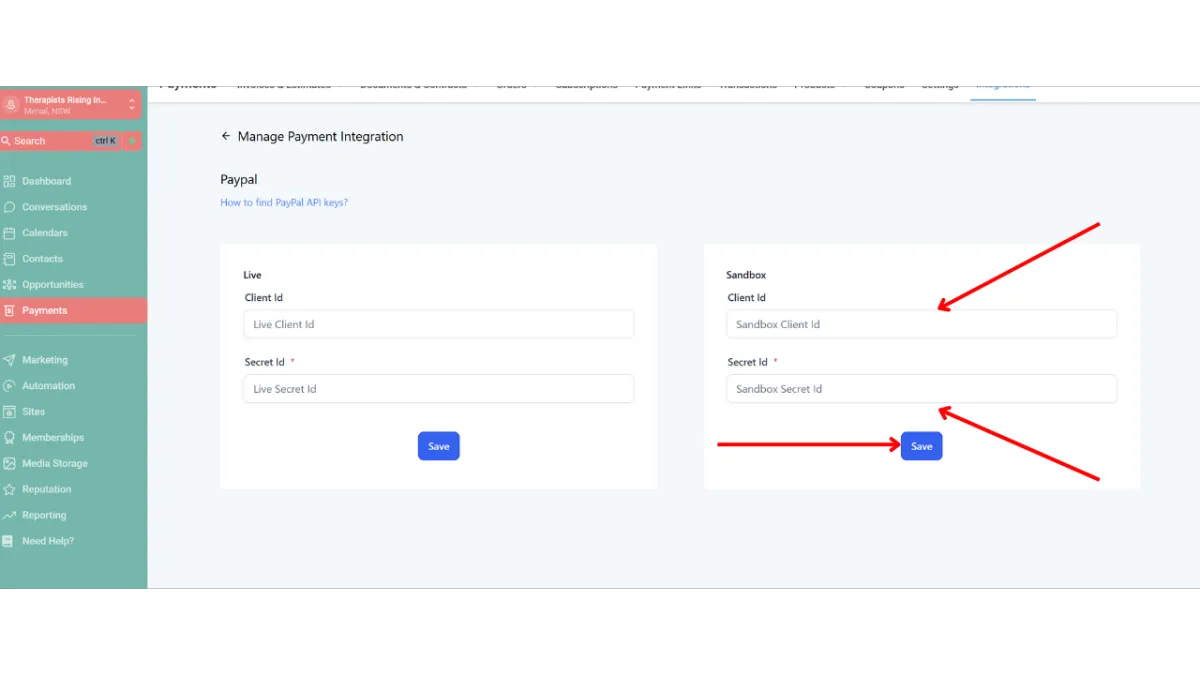
Your PayPal Test Environment is now connected
Retrieve Your PayPal Live Environment API Credentials
Now we will integrate your Live PayPal Environment with Innovorise. To do this we will replicate the steps taken to Integrate the Test Environment.
First Head Back to your PayPal Developer Tab and on the left had side click
My Apps and Credentials
At the top of this screen you will see the option to select Sandbox or Live, this time as we are integrating the live environment ensure that Live is selected.
As we did with the Test Environment Click
Create App Button
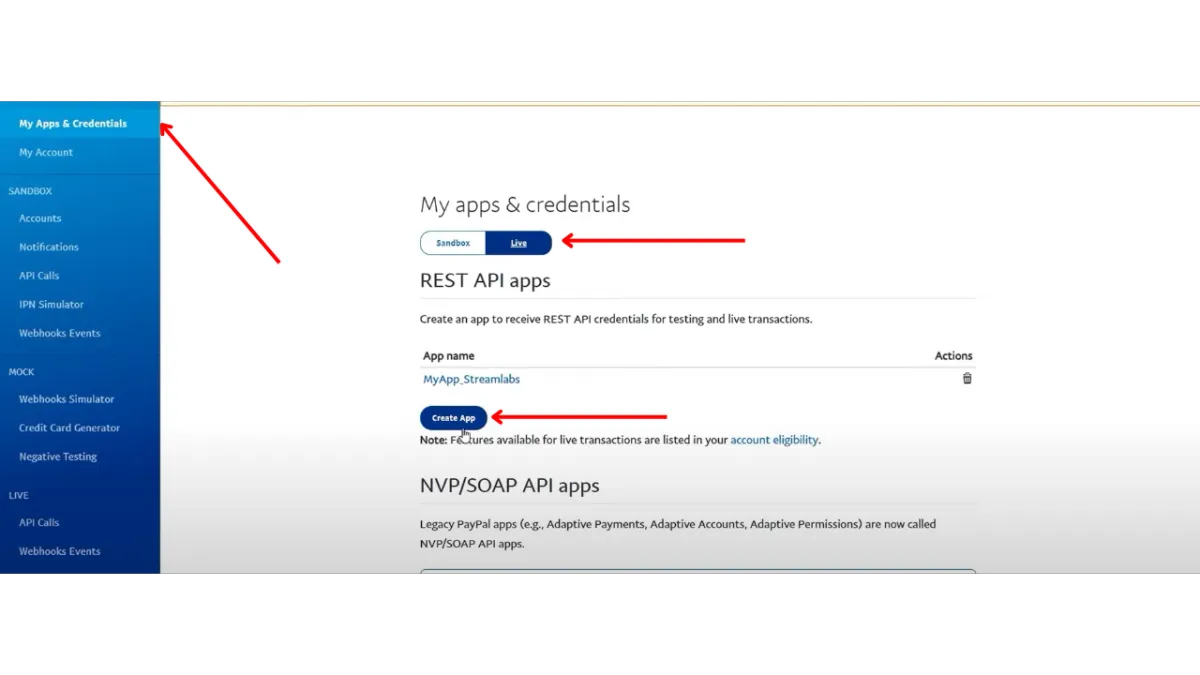
We will follow the same process when creating the App for the Live Environment that we did for the Test Environment.
The first step when creating your App is to name your App. It would be best to name the App in relation to your business or the type of business you conduct.
The next step is to ensure that Merchant is selected for App Type.
Then Click Create App button.
Once the App is Created you will be taken to the Apps Page, here you will see -
Client ID
Secret ID
Integrate your PayPal Live Environment and Innovorise
To complete the Integration of the PayPal Live Environment with Innovorise we will follow the same steps as we did with the Test Environment. If you have closed your Innovorise Tab -
In a New Tab open Innovorise ensuring you keep your PayPal Open as well you will need this to complete the process.
Once you are logged in -
Click Payments in the Left Hand Menu
Then Click Integrations in the Header
Then Click the Connect Button in the PayPal row
From your PayPal Developers tab copy your
Client ID and paste it into the Live Client ID Box in Innovorise
Secret ID and paste it into the Live Secret ID Box in Innovorise
Then click the Save Button
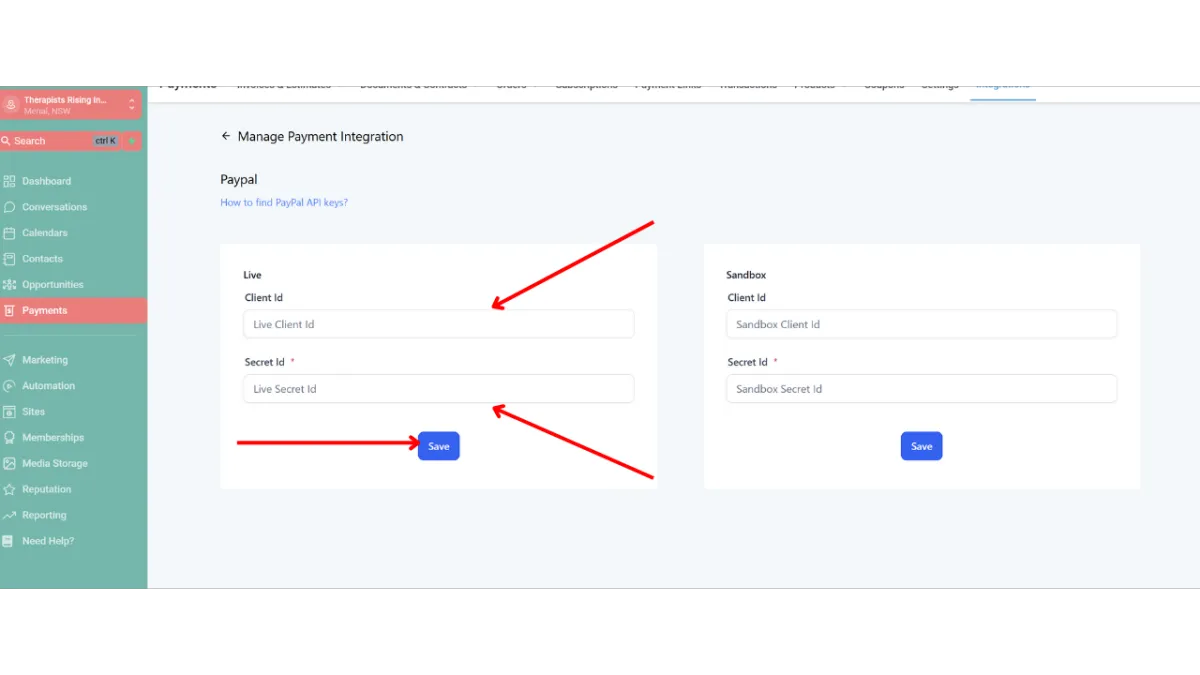
Your PayPal Live Environment is now connected