
How to Set Up Your Domain for your Website in Innovorise
Adding a domain to your account enables website and funnel functionalities to be created and utilized. A domain refers to the web address, for example, a root domain like mydomain.com or a subdomain like www.mydomain.com. To begin, establish a domain with a registrar like Cloudflare, GoDaddy, Hover or others. Afterward, you can integrate the Domain into the system for use.
Please Note:
This article covers how to manually configure a domain. To learn how to use the automated Domain Connect feature, click here.
Covered in this Article:
How to configure Domains for Funnels and Websites?
Step 1: (DNS Setup) Add an A record OR a CNAME record:
Step 2: Add the domain/Subdomain in your account:
Step 3: Associate the Domain to a Funnel/Website:
How to check your DNS records (DNS Lookup Tool)
Removing a Domain from the account
Troubleshooting
What causes an SSL Error?
What causes the error "CNAME / A record not found."
404 Error
Why do my Cloudflare domains not work with a Proxy?
FAQs
Can I use the same Domain with more than one platform?
Can I add the same Domain to more than one account?
How many domains can I add to one account?
Do I have to purchase SSL for the Domain separately?
Can I buy a domain from you directly?
How many funnels/websites can I connect with one Domain?
How to configure Domains for Funnels and Websites?
To set up your new Domain, adhere to the following instructions:
Step 1: (DNS Setup) Add an A record OR a CNAME record:
You must complete this step within your domain registrar, such as Cloudflare or GoDaddy. Based on your domain host, you can choose one of the following two methods:
CNAME:
You can add a CNAME record for your subdomains using the value
sites.ludicrous.cloud

Instructions on Adding a CNAME record to various Domain Registrars:
Please Note:
If you are using Cloudflare, please make sure that the Proxy status is set to DNS only as we do not support Cloudflare Proxy.

A Record
Alternatively, you can add an A record for your root domain or subdomain, directing it to
162.159.140.166

Instructions on Adding an A record to various Domain Registrars:
Please Note:
If you are using Cloudflare, please make sure that the Proxy status is set to DNS only as we do not support Cloudflare Proxy.
Step 2: Add a Domain/Subdomain to your account:
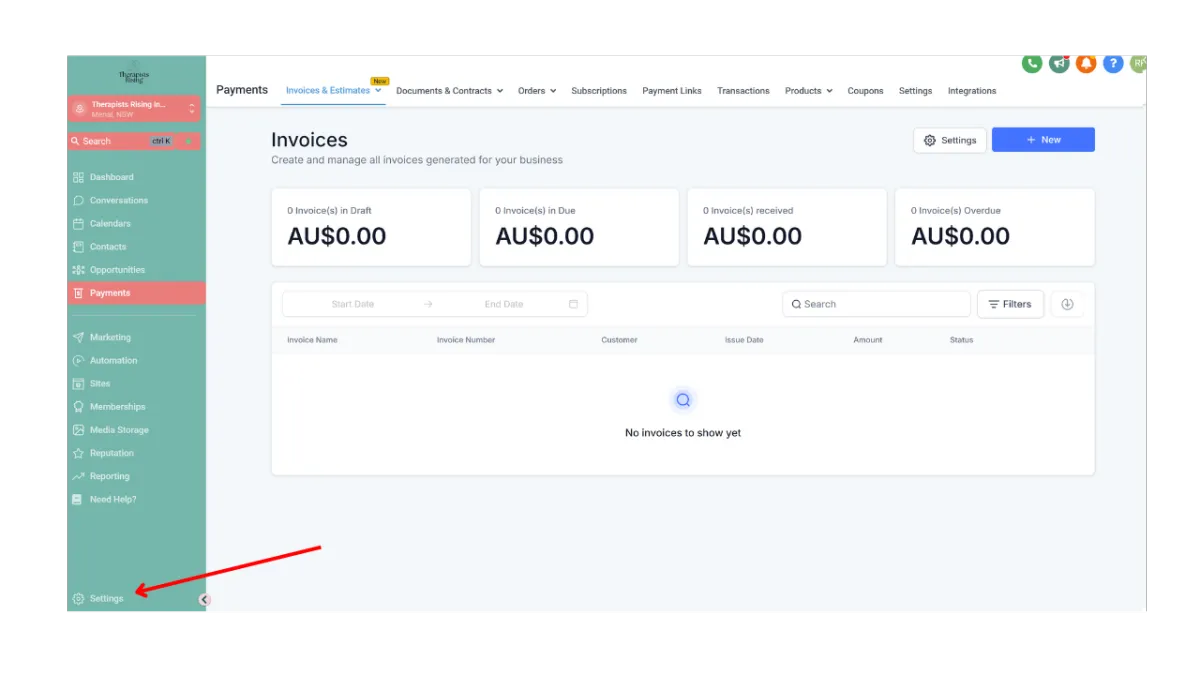
Go to Settings in the left navigation menu
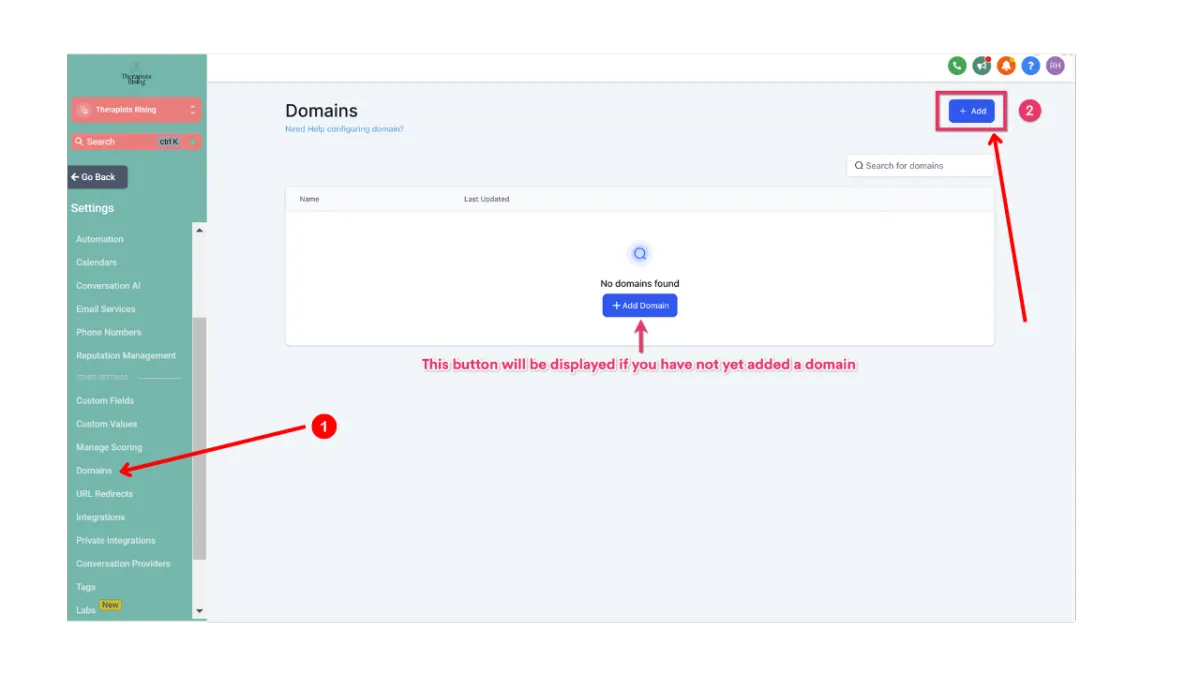
Next, go to Domains then click the + Add button (or the + Add Domain button)
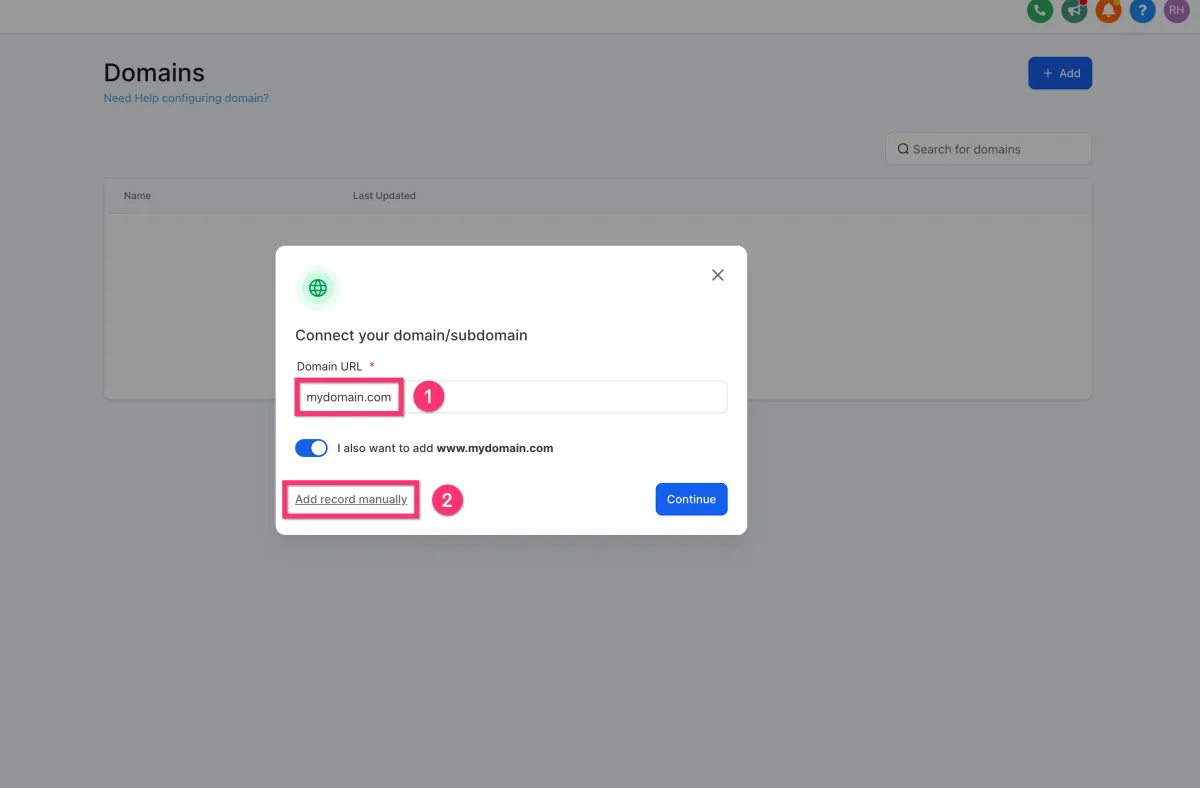
For Root Domains (e.g mydomain.com):
Enter your domain in the Domain URL field (use the root domain, not the subdomain) then click the Add record manually link.
By default, the system will enable adding the www subdomain in addition to the root domain.
This option will also enable a 301 redirect so that all traffic to the www subdomain will be sent to the root domain.
Please Note:
Clicking the Continue button will initiate the "Domain Connect" feature which will lookup where the domain is registered and attempt to authorize a connection to automatically add the necessary DNS records. If your registrar is not supported yet, you will be prompted to manually add the DNS records with your domain registrar. click here for more information about that process.
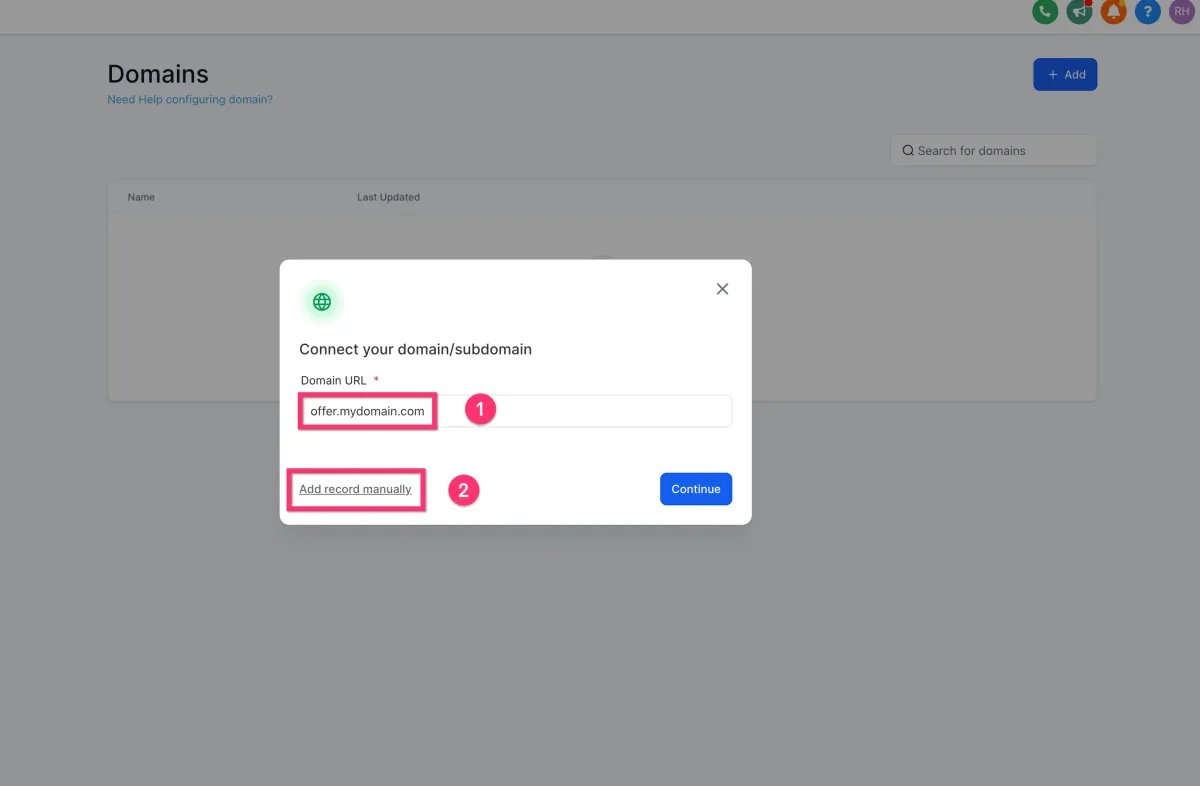
For Subdomains (e.g offer.mydomain.com)
Enter your subdomain in the Domain URL field then click the Add record manually link.
Step 3: Associate the Domain to a Funnel/Website:
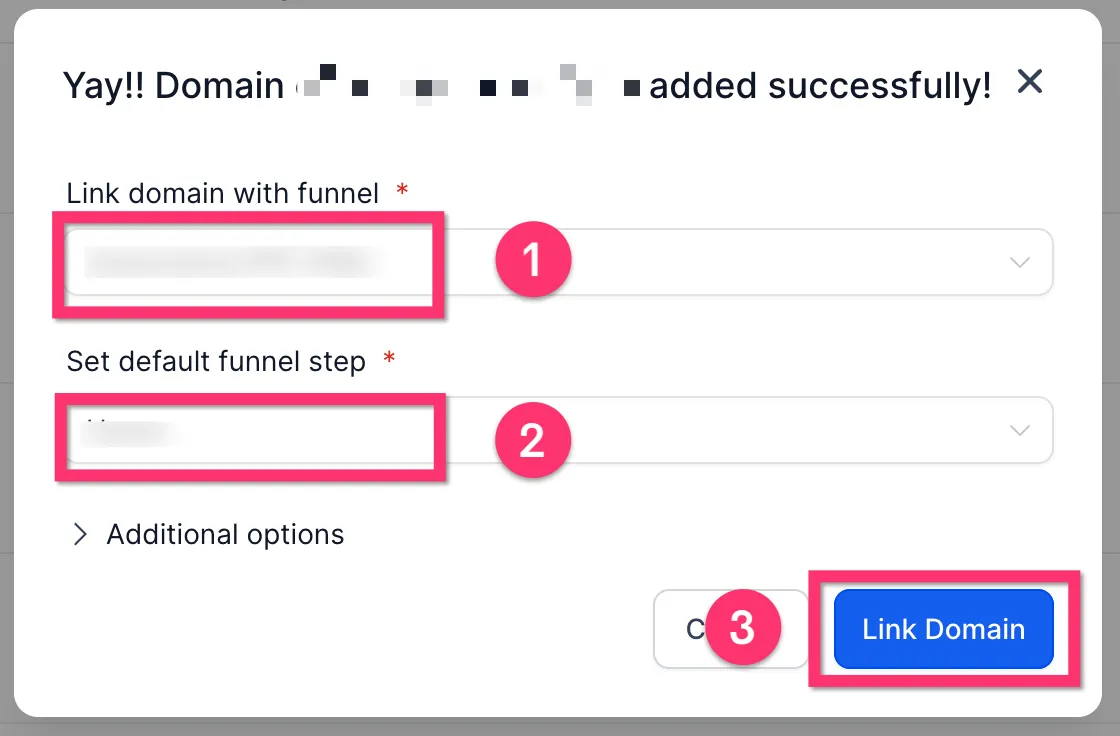
Once the DNS records have been verified, you will be presented with a screen where you can choose which funnel or website you'd like to link.
First, choose the funnel or website.
Then, you'll be presented with an choice of which funnel step or page of a website you'd like to be the default landing page.
Finally, click the Link Domain button. This will complete the process and add an SSL certificate automatically. Please note that it will take a few minutes to complete on the backend.
Please Note:
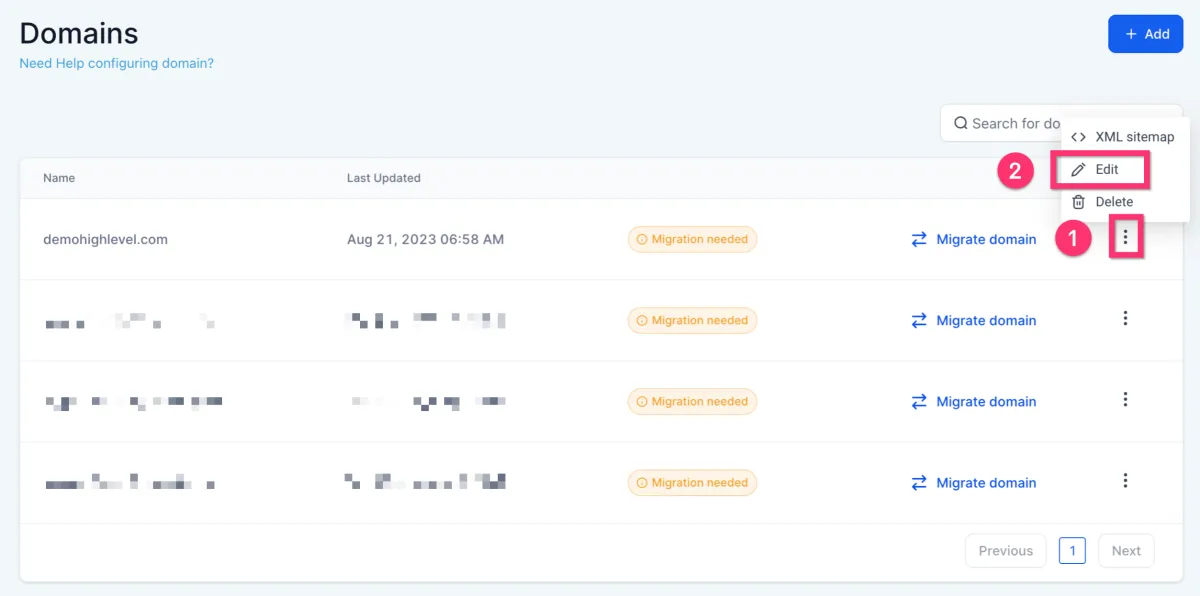
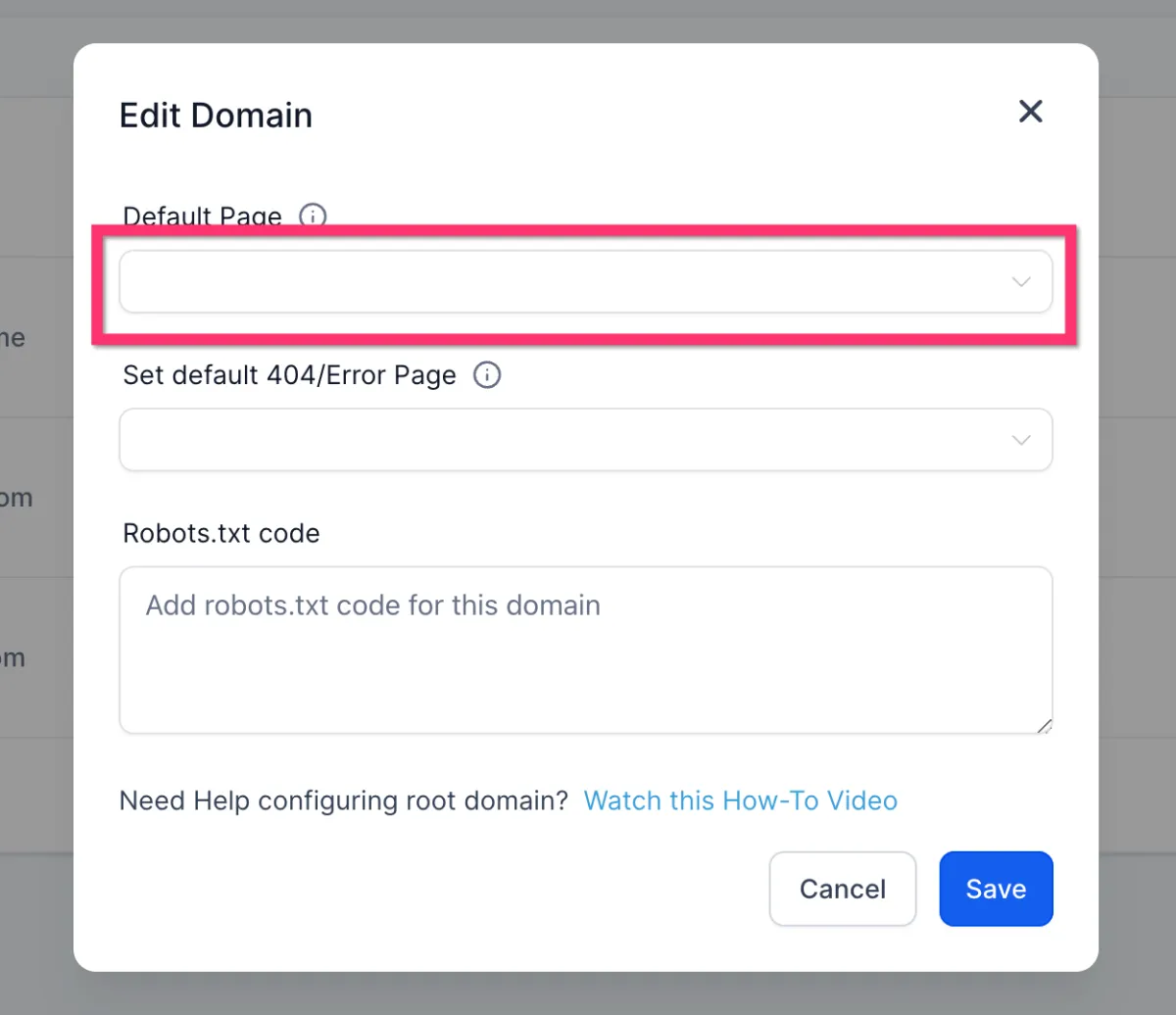
If you want to set funnel step / website page to open without a path (domain.com instead of domain.com/home) at a later time, you can select that page as the default page for that domain. A default page can be selected from Settings > Domains > Edit Domain.
How to check your DNS records (DNS Lookup Tool)
MXtoolbox is a popular online tool that can help you check your Domain's DNS records. Follow these steps to use MXtoolbox for checking DNS records:
Go to the MXtoolbox website at https://mxtoolbox.com
On the homepage, you will see a dropdown menu with options like MX Lookup, DNS Lookup, Blacklists, etc. Click on the dropdown menu and select the type of DNS record you want to check. Some common options include: standard.
MX Lookup: Check your Domain's mail exchange (MX) records.
DNS Lookup: Check various DNS records like A, AAAA, CNAME, NS, etc.
TXT Lookup: Check the text (TXT) records for your Domain, which often contain information like SPF, DKIM, and DMARC records.
CNAME Lookup: Check your Domain's canonical name (CNAME) records.
After selecting the appropriate option from the dropdown menu, enter your domain name (e.g., example.com) in the input field next to the dropdown menu.
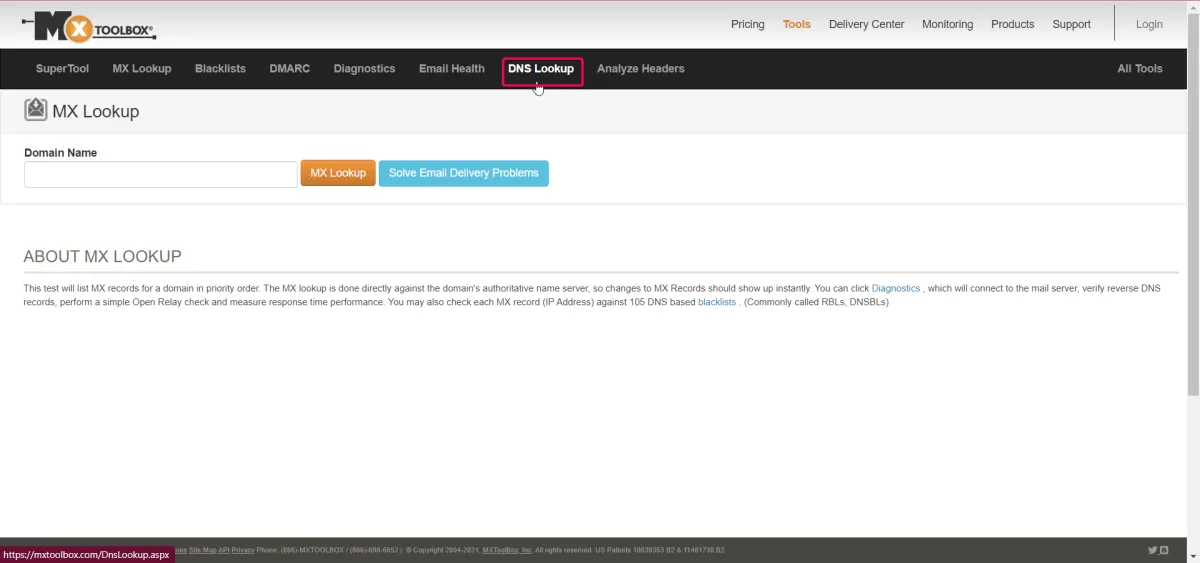
Click the "DNS Lookup" button to initiate the search.
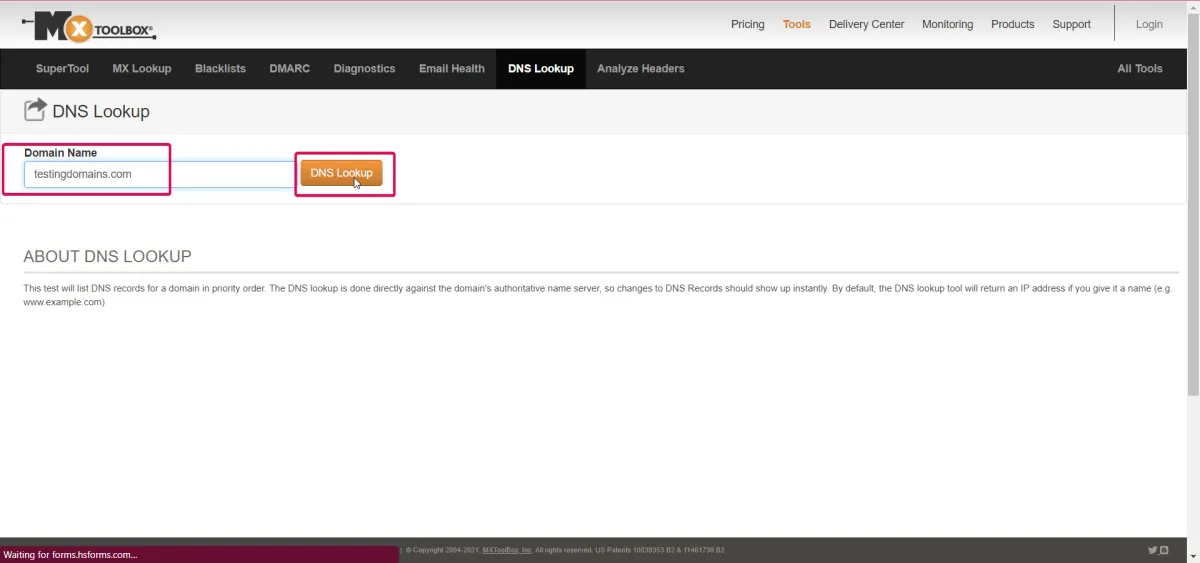
The tool will then display the DNS records for the Domain you entered. You may need to scroll down to see all the results.
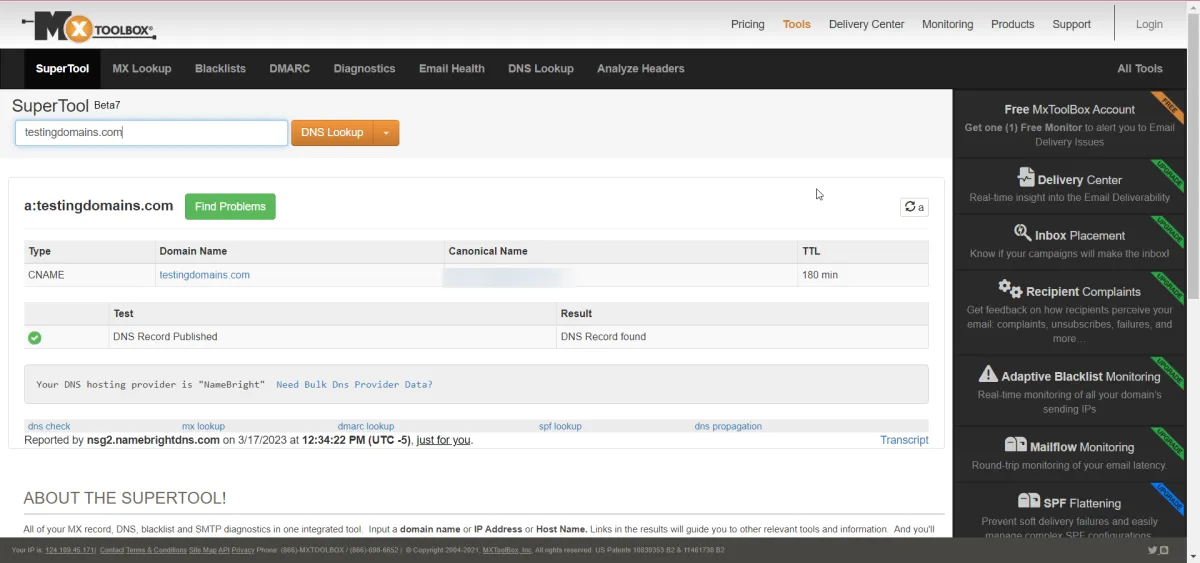
Remember that the DNS records might not be updated instantly if you've recently changed your Domain's configuration. The changes can take some time to propagate across the internet, typically up to 24-48 hours.
Removing a Domain from the account
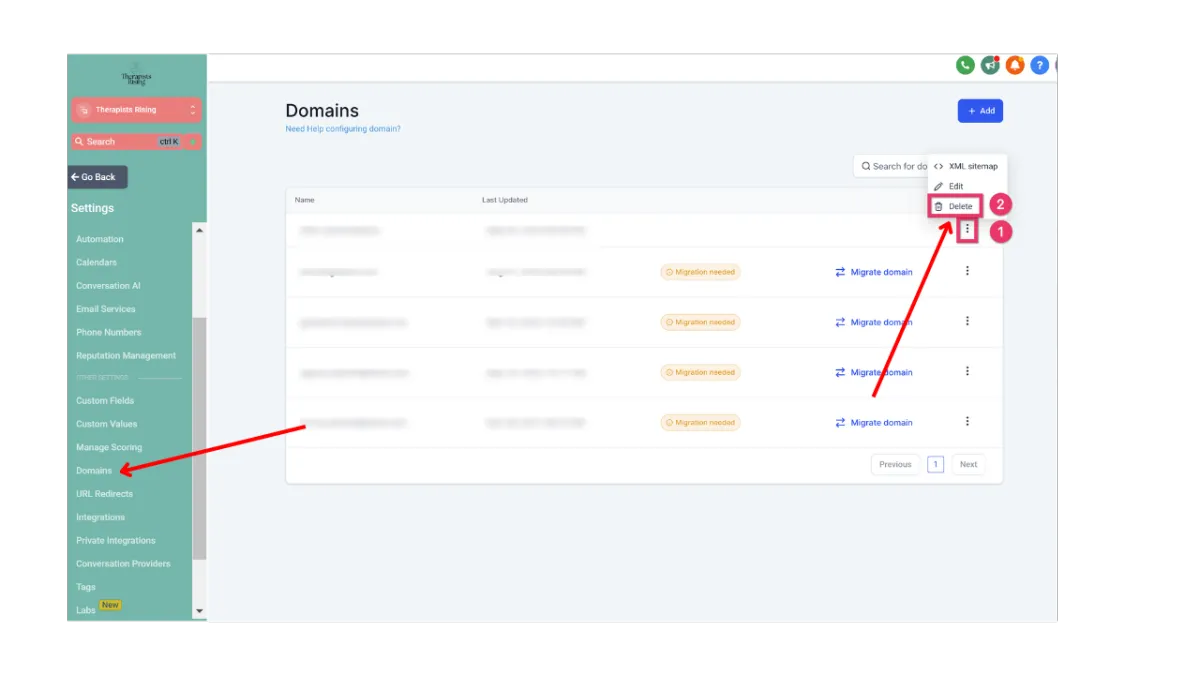
To remove a domain from your account, go to Settings > Domains > on the line of the domain you want to delete, click on the three dots > Delete > confirm your choice on the confirmation dialog box.
Troubleshooting
What causes an SSL Error?
An SSL (Secure Sockets Layer) error occurs when there is a problem with the SSL certificate or the SSL/TLS (Transport Layer Security) configuration on a website. SSL/TLS is a security protocol that provides encryption and secure communication between a user's browser and the web server. SSL errors can result from various issues, often indicating that the connection between the user's browser and the web server is insecure.
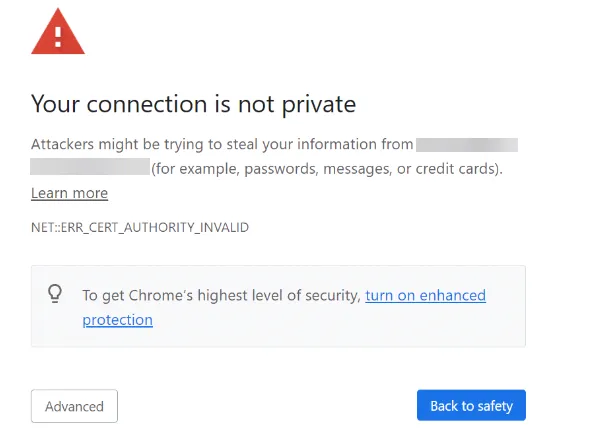
If your Domain is showing a privacy/SSL error, it can be due to one of the following reasons:
Multiple DNS (A or CNAME) records exist for the same domain/subdomain. One Domain or subdomain can only work with one platform/server at a time, and that's why you need to have only one DNS record set up for that domain/subdomain
There is no DNS record added for the Domain
The Domain has an AAAA added, other than the A/CNAME record
What causes the error "CNAME / A record not found."
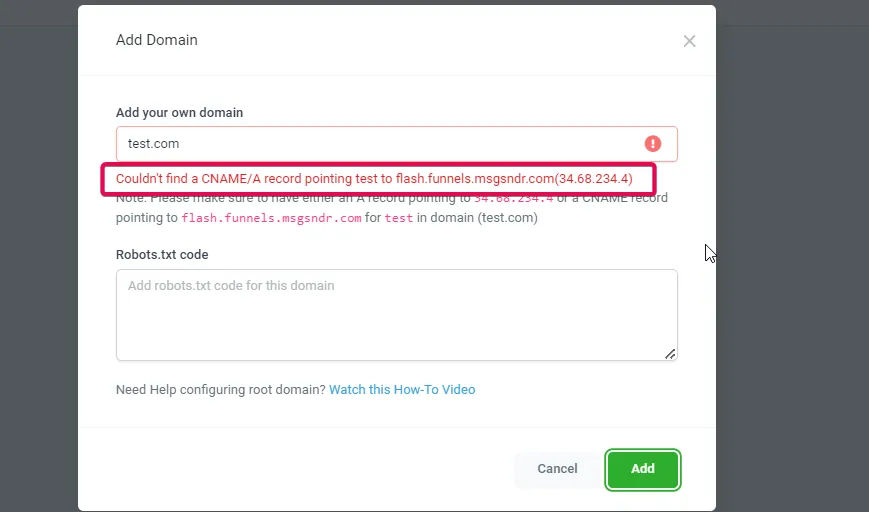
This error occurs if your DNS record is not set up properly or they are added to the incorrect domain host. Use the DNS lookup tool to discover where your Domain is hosted (GoDaddy, CloudFlare, Namecheap, etc.). Make sure to add the DNS record properly and add it to the correct domain host.
404 Error
A 404 error, also known as "404 Not Found," is a standard HTTP status code that indicates the requested web page or resource could not be found on the server. This error typically occurs when a user tries to access a non-existent URL or when the requested page has been deleted or moved to a different location without proper redirection.
If your Domain without any path shows a 404 error, e.g., mydomain.com, you need to go to Settings > Domains > Edit Domain> Select a default page. In case it is already selected, try saving it again.
If your Domain shows a 404 error despite having a default path, e.g., mydomain.com/home, then you need to make sure that one of the funnels/websites that are connected has the same path added in page settings. If the path is already added and it still does not work, then go to the funnel/website settings > remove the Domain> Save> add the Domain again and save.
If your Domain shows a 404 error intermittently, then you might be using the www/root domain with your funnel/website. In that case, ensure you have added a redirect from www to the non-www (root) domain or from the non-www Domain to www.
Why do my Cloudflare domains not work with a Proxy?
Suppose your DNS setup is accurate, but you're still getting a privacy error, your funnel/website is not showing images, or you cannot add the Domain. In that case, you need to make sure you've set the proxy status inside CloudFlare to "DNS Only."
When the CNAME/A record has proxy status set to "proxied," it shows an error.
CloudFlare proxy status is only to be set to "proxied" when setting up a redirect (only use this by following the exact instruction mentioned in the steps to set up a redirect)
