Email Services Configuration - Reply & Forward Settings
Covered in This Article
What are Reply & Forwarding Addresses?
Where to Find Reply & Forward Settings
Forwarding Address
Reply Address
BCC Emails
Forward to Assigned User
Enable Reply Tracking - Other SMTP Providers
Example With Reply Tracking
Example Without Reply Tracking
Frequently Asked Questions
What are Reply & Forwarding Addresses?
Here are a few additional configurations that you can use to receive copies of the Emails that you get in your account using a Forwarding Address or BCC. Reply Tracking is also elaborated.
Where to Find Reply & Forward Settings
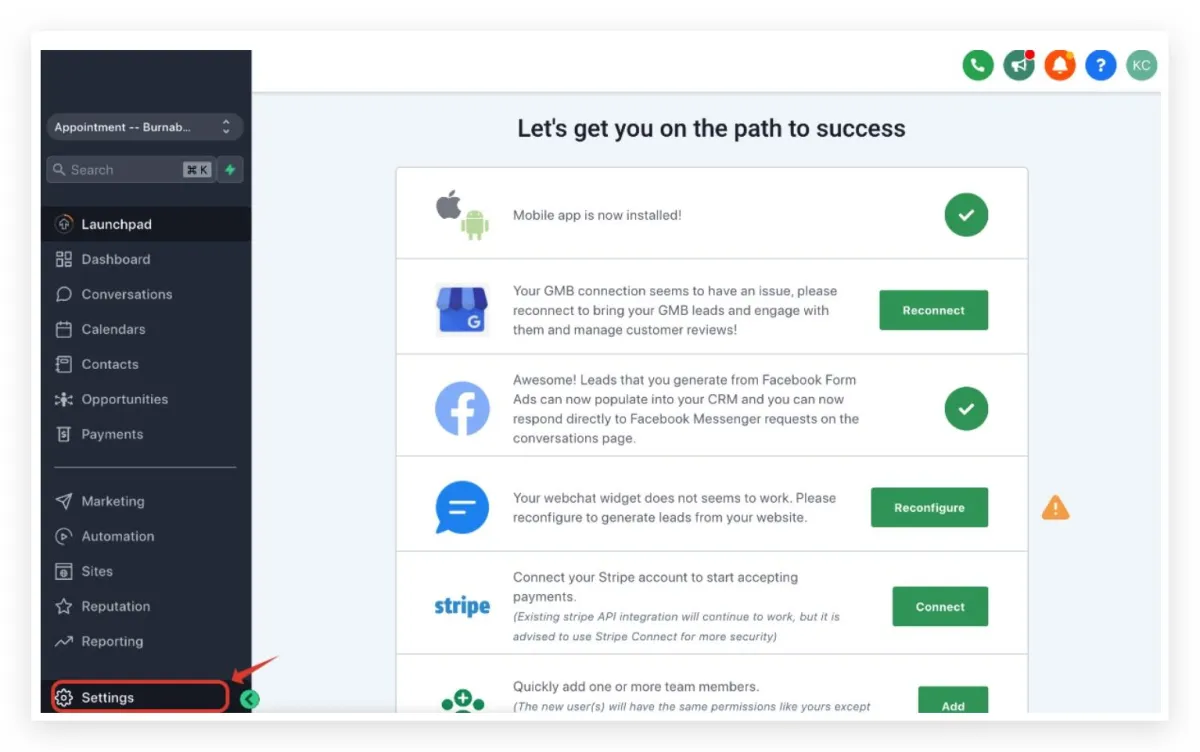
Once you are in the location, click on Settings -> Email Services
Forwarding Address
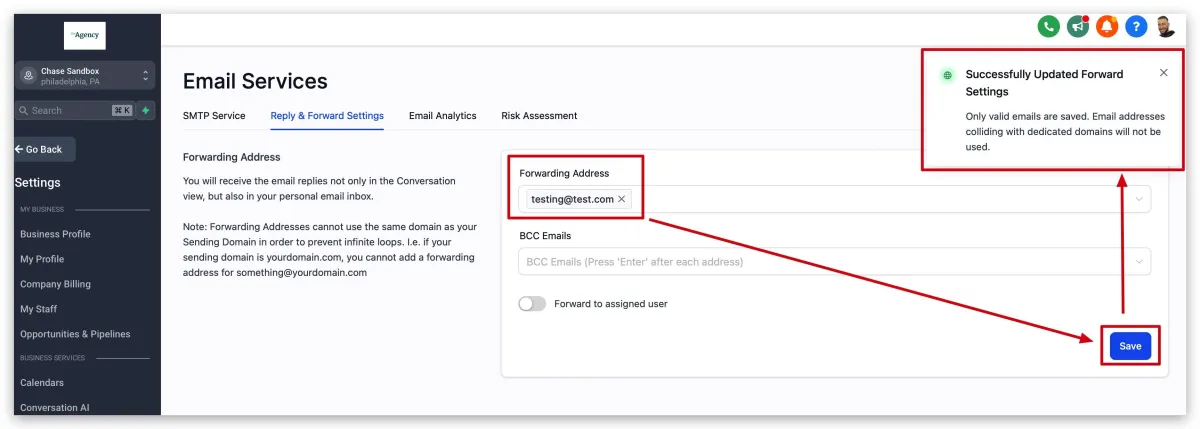
If a lead responds to an email, that response is always going to show up in Conversations tab, however, if you want a COPY of the lead’s email response to go to someone’ email, you could put in that email address there. All incoming and outgoing emails (To, CC, and BCC) will be charged.
You could enter multiple forwarding email addresses here separated by a comma, e.g. [email protected], [email protected], [email protected] -
ENSURE YOU PRESS ENTER ONCE EACH EMAIL IS ENTERED.
Please Note
Forwarding address and BCC Emails ONLY work when using Mailgun and LC Email. We don't support other smtp providers.
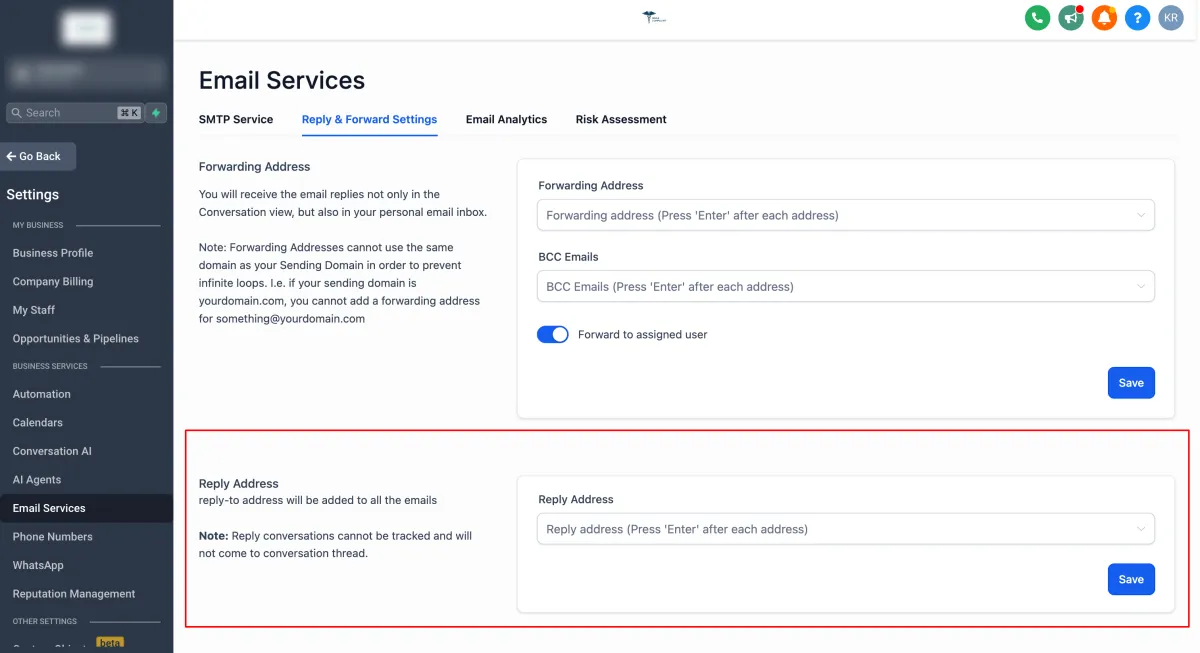
Reply Address
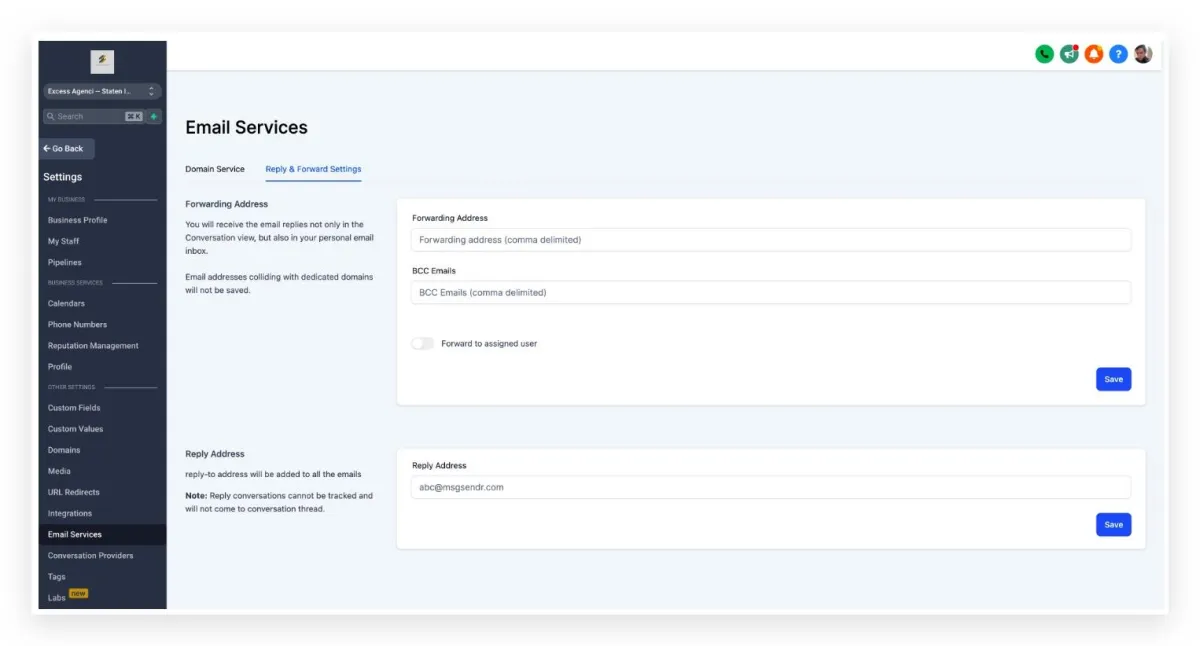
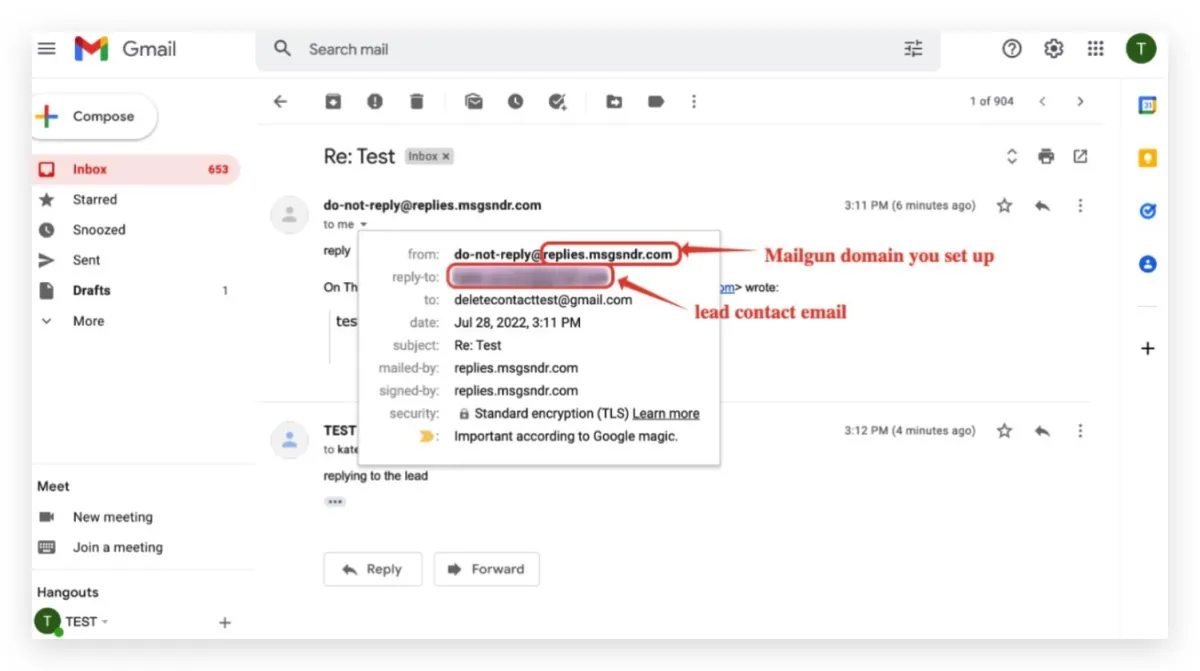
Now we have the option to Add a reply-to address. All incoming emails will be sent to that email address instead of routing to the Conversation tab.
When you reply to the leads' email in your inbox outside the CRM, your reply will not sync back to the CRM.
You will be able to add up to 5 email addresses, ENSURE YOU PRESS ENTER ONCE EACH EMAIL IS ENTERED.
This can be configured in Settings> Email Services> Reply & Forward Settings> Reply Address.
Make sure to Save once you have entered a Reply Address.
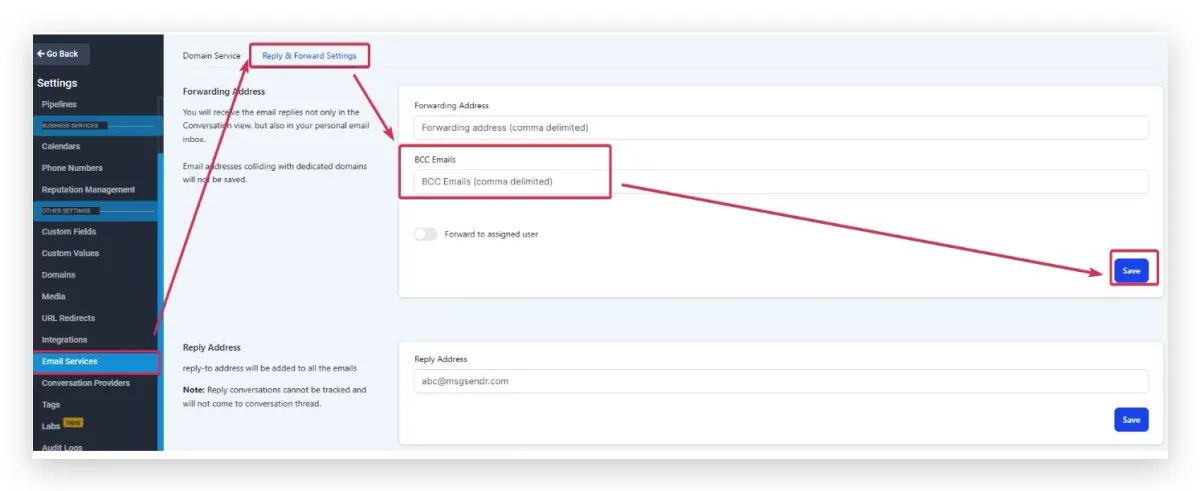
BCC Emails
You will receive a Blind Carbon Copy of every email that goes out from that location. This is configurable from Settings> Email Services> Reply & Forward Settings> BCC Emails
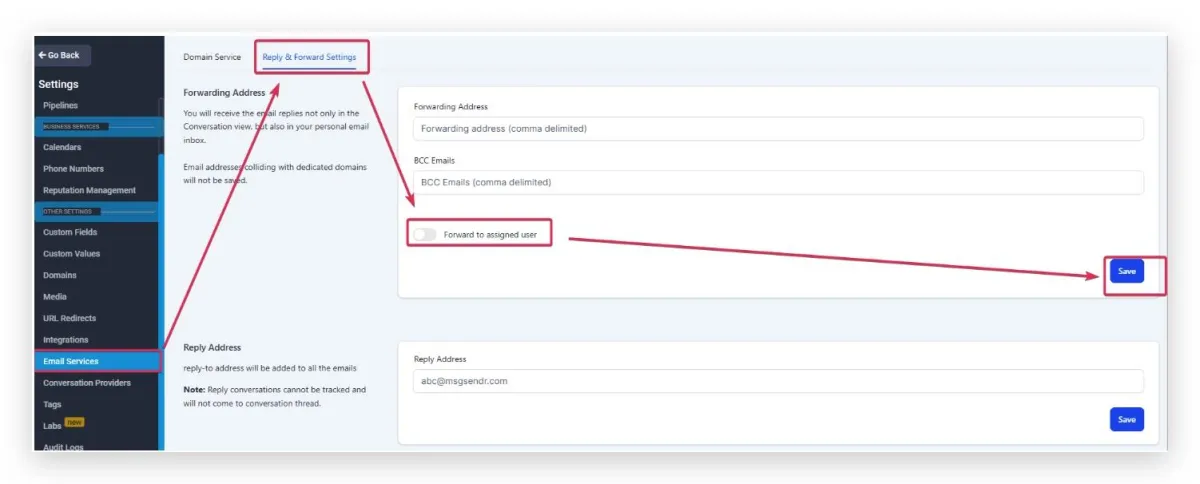
Forward to Assigned User
The assigned user of the lead will receive the email replies in their Email Inbox. The Email will be sent to the Email address for that user in Settings> My Staff> edit User> User Info
Frequently Asked Questions
Q: Why the attached files do not get forwarded along with the email replies?
A: The forward settings in the email services tab do not support forwarding attachments. So if the contact replies to the emails with an attachment, we will need to log in to the Innovorise conversation view to see it.
Q: Why do the forwarding emails I've added disappear after attempting to save?
A: If the email addresses are invalid, or they collide with any dedicated domains added to your account, they cannot be used as a forwarding address.