Email Dedicated Sending Domains
Email marketing is a great way to reach customers and increase sales. But if you're not careful, you could end up in trouble. A dedicated sending domain gives you control over what appears to be coming from your business. That means you can avoid spam filters and other issues that might get your messages caught by unwanted mail servers.
Don't let your email marketing efforts go unnoticed! Get started right away with a dedicated sending domain.
Please Note:
If you are using a new domain that has never been used for email please make sure to warm up your domain before emailing to a large list. Failure to do so will results in poor deliverability results.
Covered in this article:
What is a Dedicated sending domain?
How to create a dedicated sending domain?
How to set up a dedicated sending domain for notification emails?
How to set up set up specific sending sub-domains for Workflows, Bulk Actions, Email Campaigns, etc.
How to set up a default header for a dedicated sending domain?
FAQ
How to choose a sending domain name for my account?
I've added a domain that is not verified at the time, and some records are not verified. How do I generate an SSL Certificate for Dedicated Sending Domain (LC - Email)
How to delete a domain?
How to set a dedicated domain as active/default?
While trying to add a dedicated domain, it says the domain is already pointing: 'Domain already pointing to email server!'
Please Note:
You can set up accounts to send from something like replies.businessname.com for receiving responses from your customers or clients.
What is a Dedicated Sending Domain?
A dedicated sending domain allows you to send emails that appear to be coming from your brand, which can help you maintain a better reputation with email services. Any account can create a dedicated sending domain, and it's quick and easy.
By default, all emails sent from our platform will show the name of our email-sending servers in the "sent on behalf of" or "sent via" email headers:
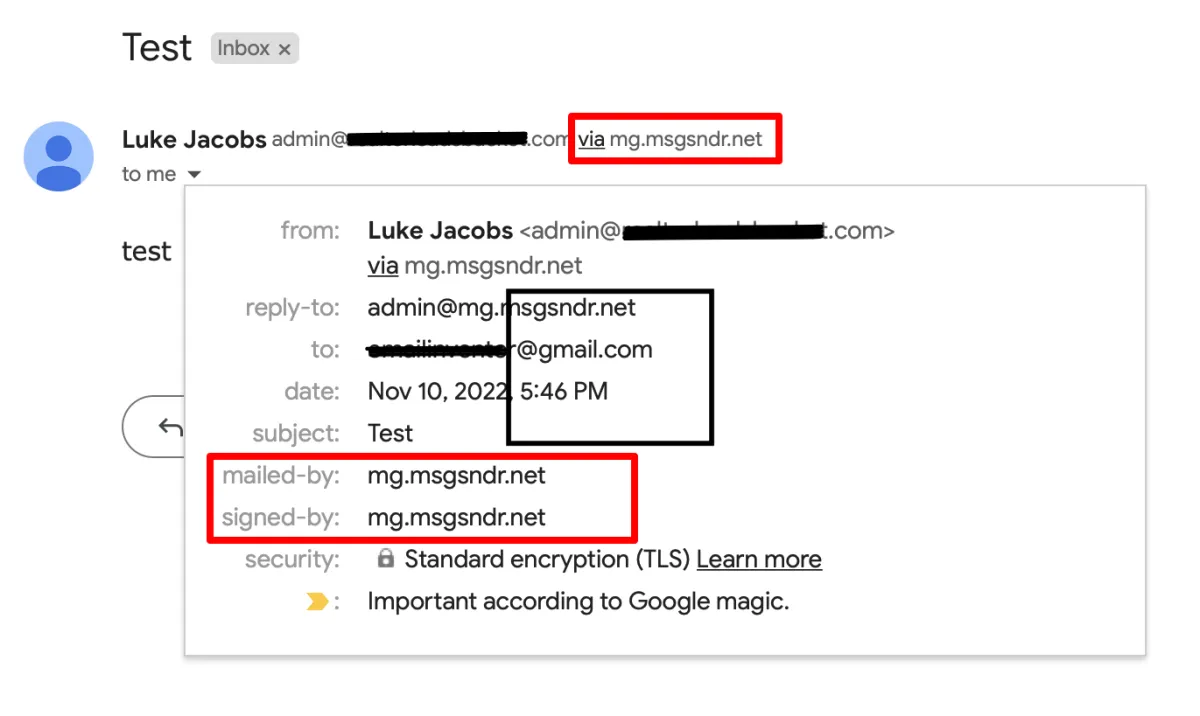
When you set up your own custom mail server domain, you will see a different "mailed-by," "sent on behalf," or "sent via" field.
How to Create a Dedicated Sending Domain?
You can create multiple sending domains under your account and make one active.
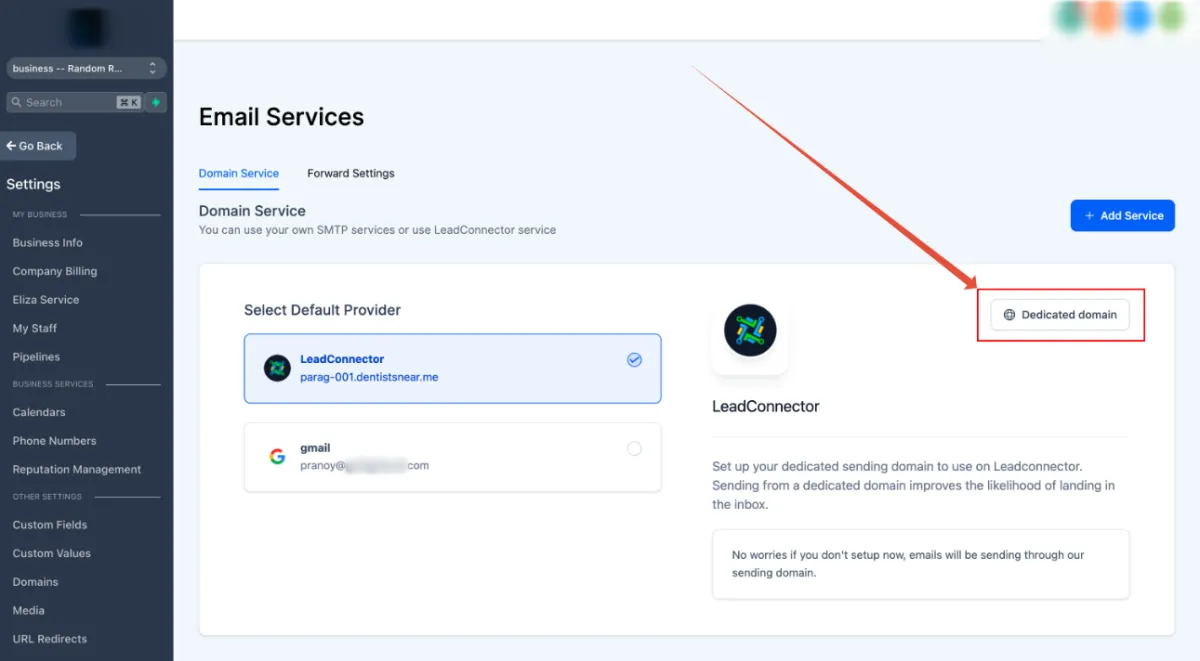
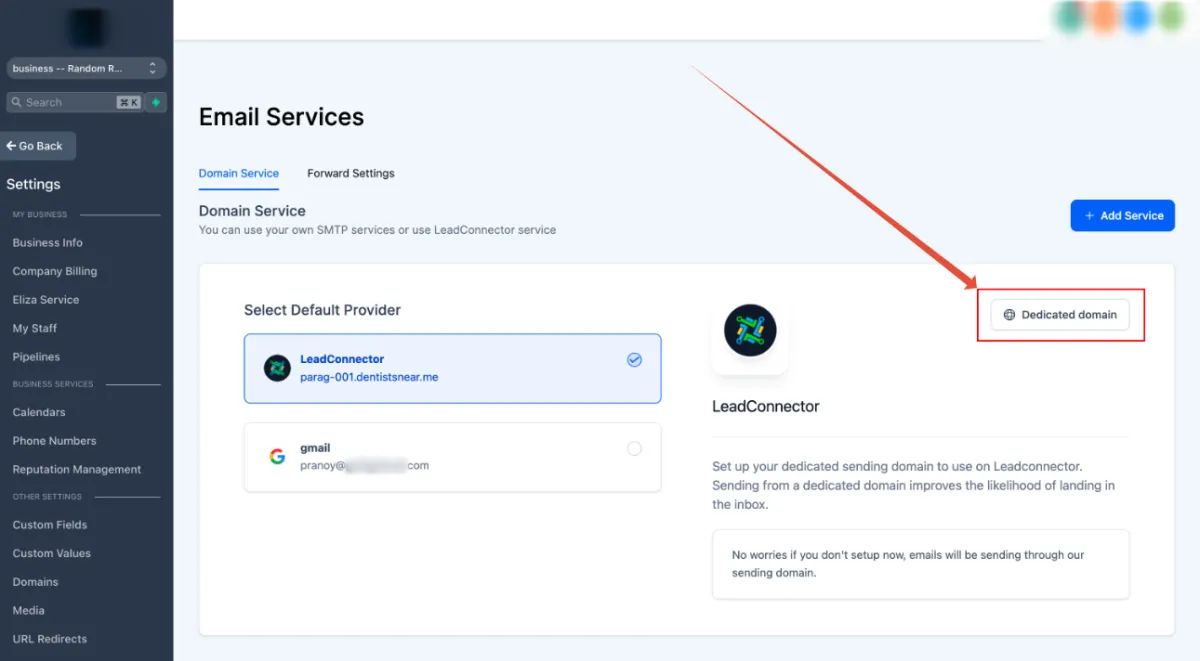
Navigate to Settings - > Email settings - > Email Services
You can find the Dedicated domain button here
Click the 'Dedicated domain' button.
Add your domain details.
Please Note:
The propagation process can take up to 24 hours. If it has been longer than 24 hours, please double-check your DNS settings by following the process above.
Verify Domain
Apply your new DNS records to your company’s DNS provider’s platform to activate the sending domain. Every domain host will have a slightly different method of doing this.
How to set up a dedicated sending domain for notification emails?
You can a sending domains under your account only for notification emails like account / User created.
Navigate to Settings - > Email settings - > Email Services
If you are in the LC email system, you can find the Dedicated domain button. Please switch to the LC email system to create a custom sending domain.
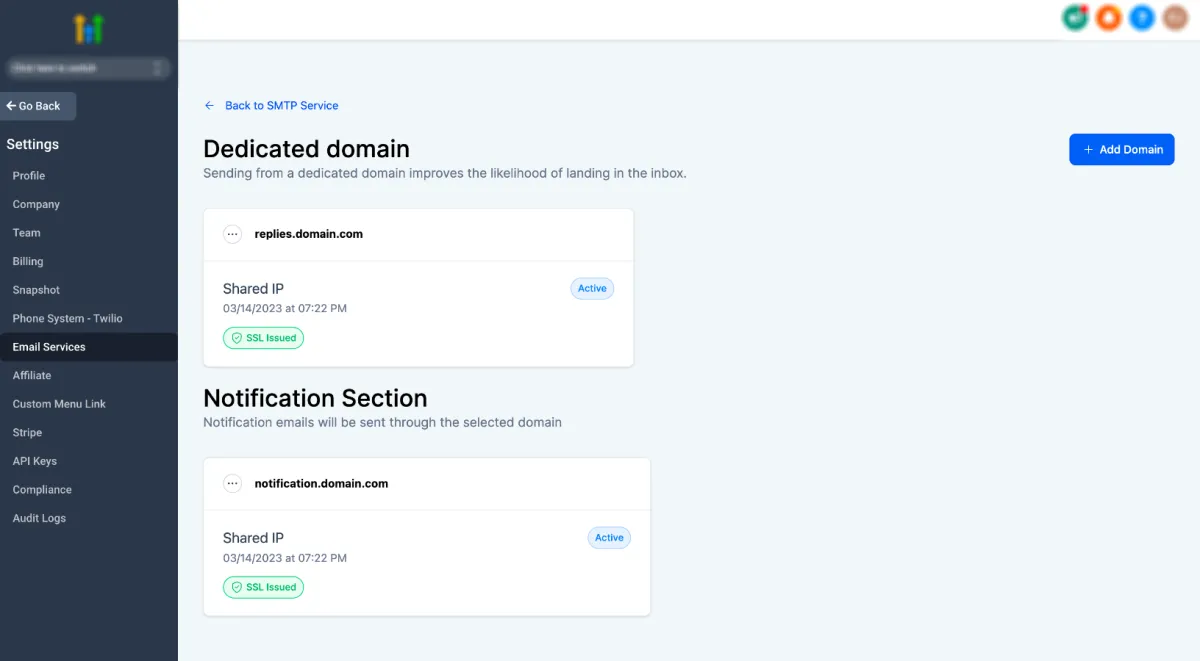
Click the 'Dedicated domain' button.
Add your domain details in Notification Section.
Please Note:
The propagation process normally happens within 60 seconds but can take up to 24 hours. If it has been longer than 24 hours please double-check your DNS settings by following the process outlined above.
Verify Domain
Apply your new DNS records to your company’s DNS provider’s platform to activate the sending domain. Every domain host will have a slightly different method of doing this.
How to set up set up specific sending sub-domains for Workflows, Bulk Actions, Email Campaigns, etc.
Please Note:
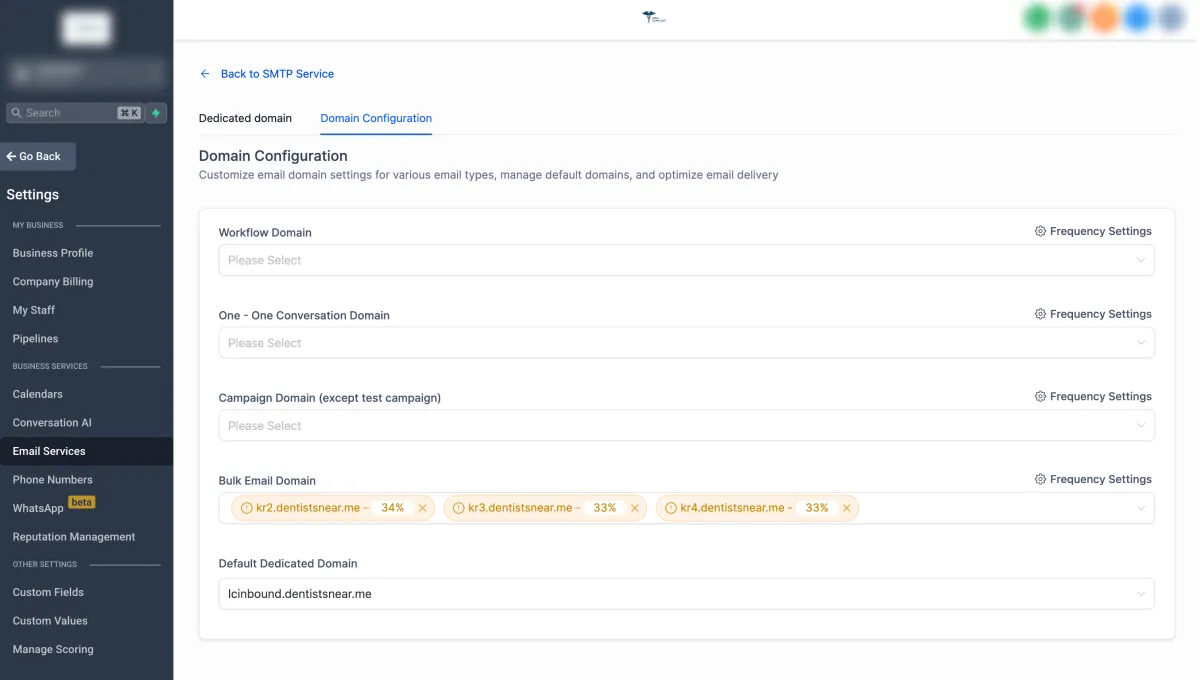
Currently domains can be assigned to Campaign, Bulk email, One-One Conversation and Workflow emails.
Default dedicated domain will be used for all other emails.
If you'd like to use different sending sub-domains for things like Workflows, Email Campaigns, Bulk Action Emails, and Manual 1-to-1 emails, you can configure that by navigating to Account Settings - Email Service -> SMTP Service -> Dedicated Domain and IP -> Domain Configuration
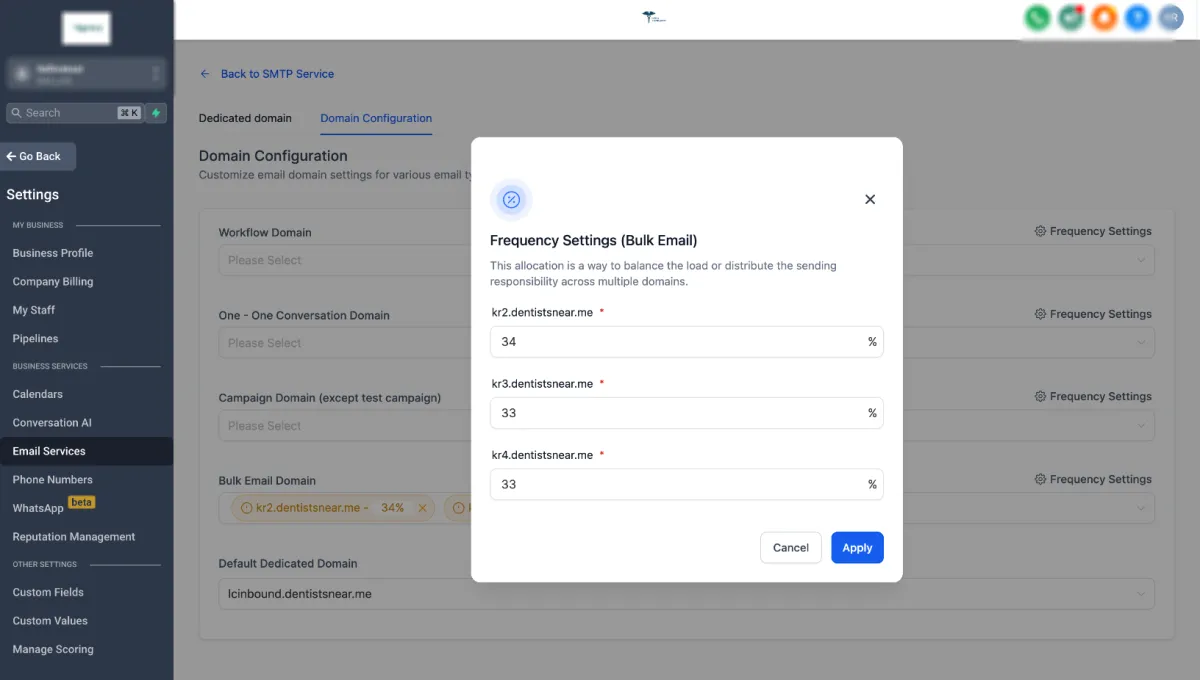
Frequency Settings (This feature is recommended for high-volume senders)
Please Note:
This functionality allows users to allocate a percentage of their scheduled emails to be sent from each domain they've added.
By assigning different frequencies to each domain, you can prioritise domains with better deliverability rates or adjust the sending frequency based on the performance of each domain. This can help ensure that emails are reaching the intended recipients' inboxes consistently.
How to set up a default header for a dedicated sending domain?
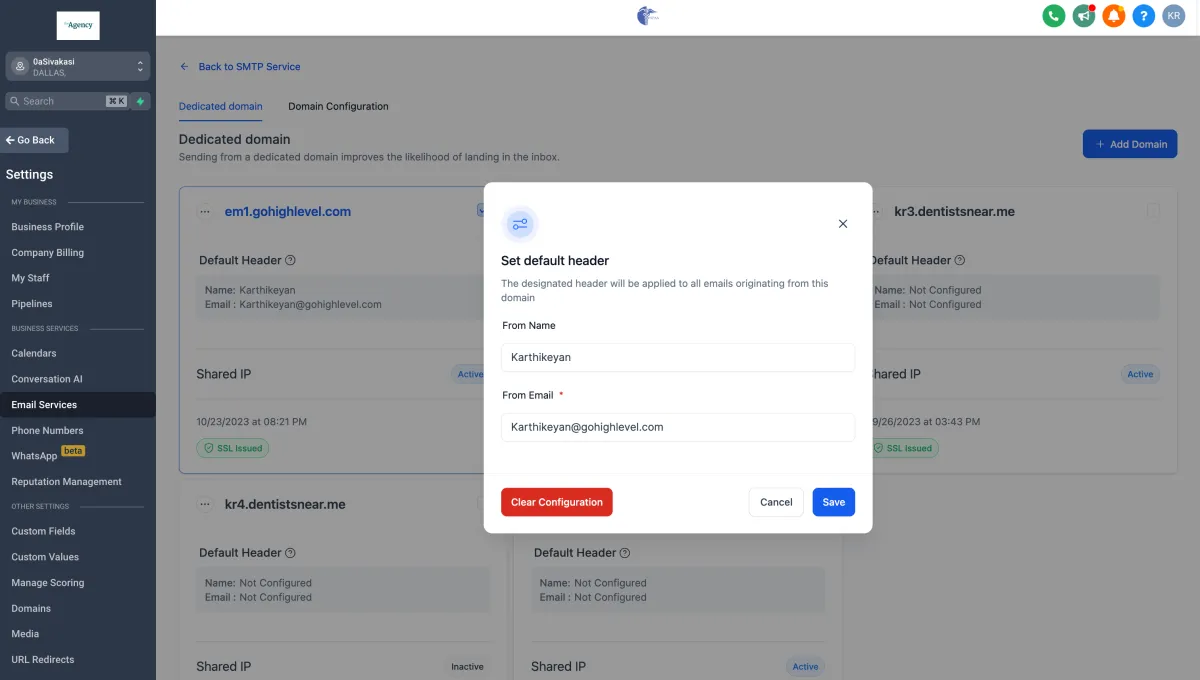
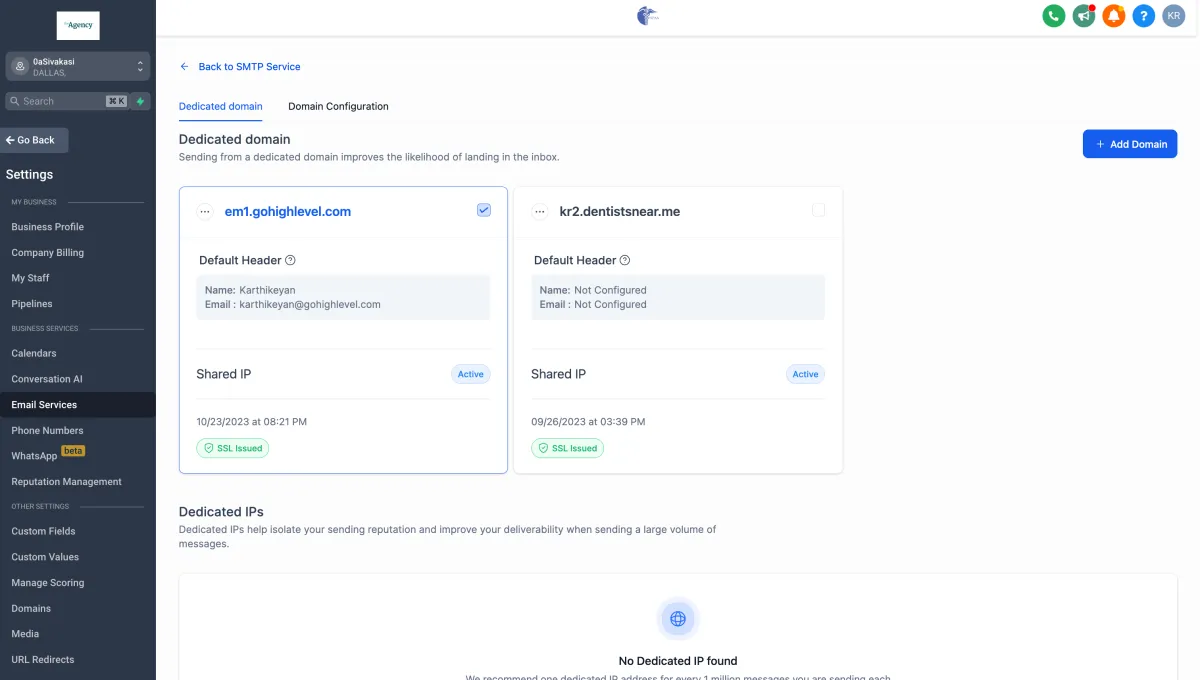
You can set up default "From address and Email" for dedicated domains under your account only for the account created domains.
Navigate to Account Settings - Email Service -> SMTP Service -> Dedicated Domain and IP -> Set headers under dedicated domain.
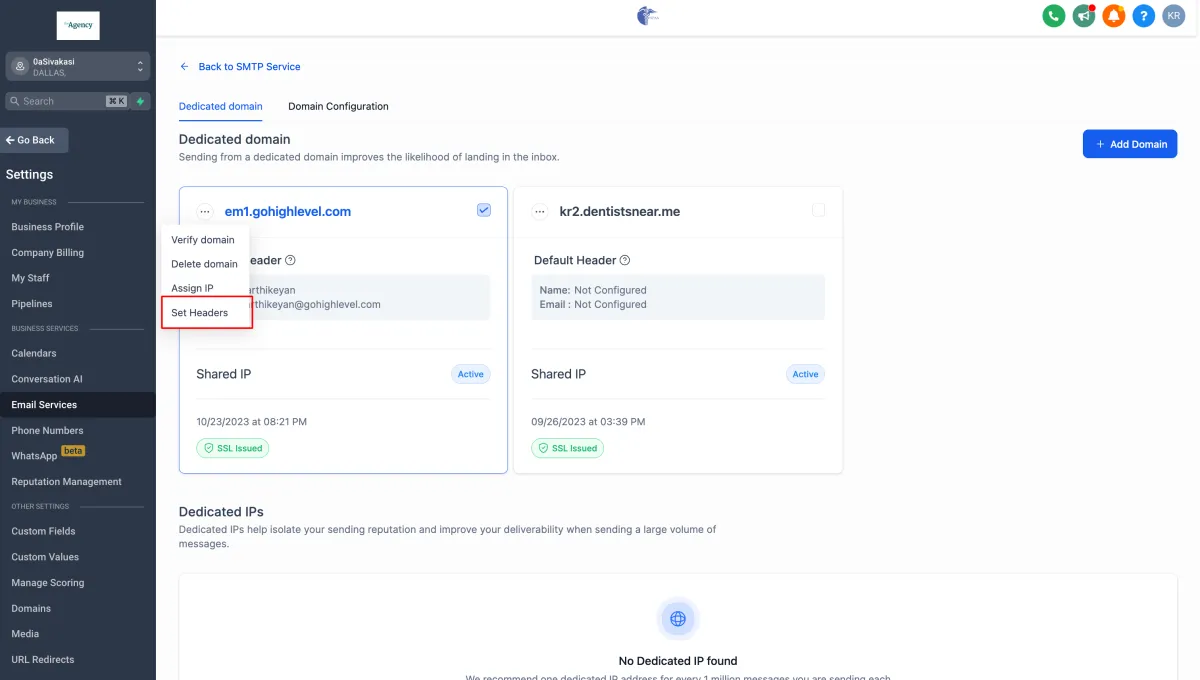
Please Note:
The designated header will be applied to all emails sending through the domain.
FAQ
How to choose a sending domain name for my account?
It would be best if you used a unique subdomain that is not used for any other purpose. A subdomain is a secondary part of your root domain. For example, if your dedicated sending domain is [email protected], your subdomain would be the “mg” portion.
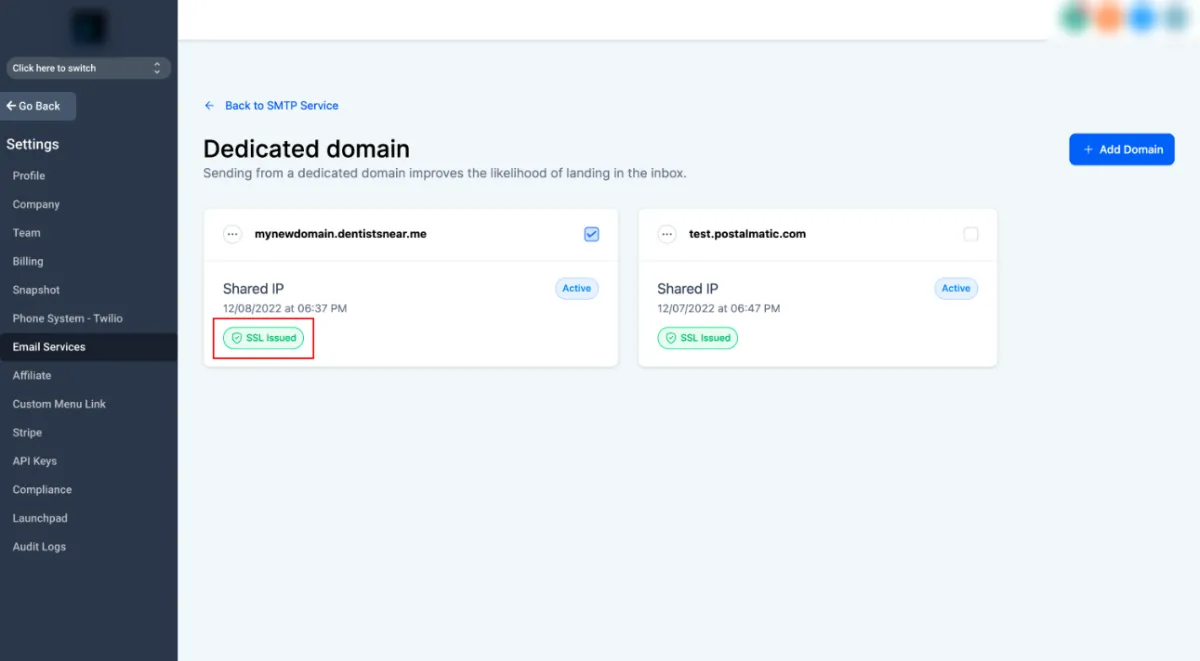
I've added a domain that is not verified at the time, and some records are not verified. How do I generate an SSL Certificate for Dedicated Sending Domain (LC - Email)
1. Navigate to Settings - > Email settings - > Domain services
2. All the unverified domains will be in an inactive state
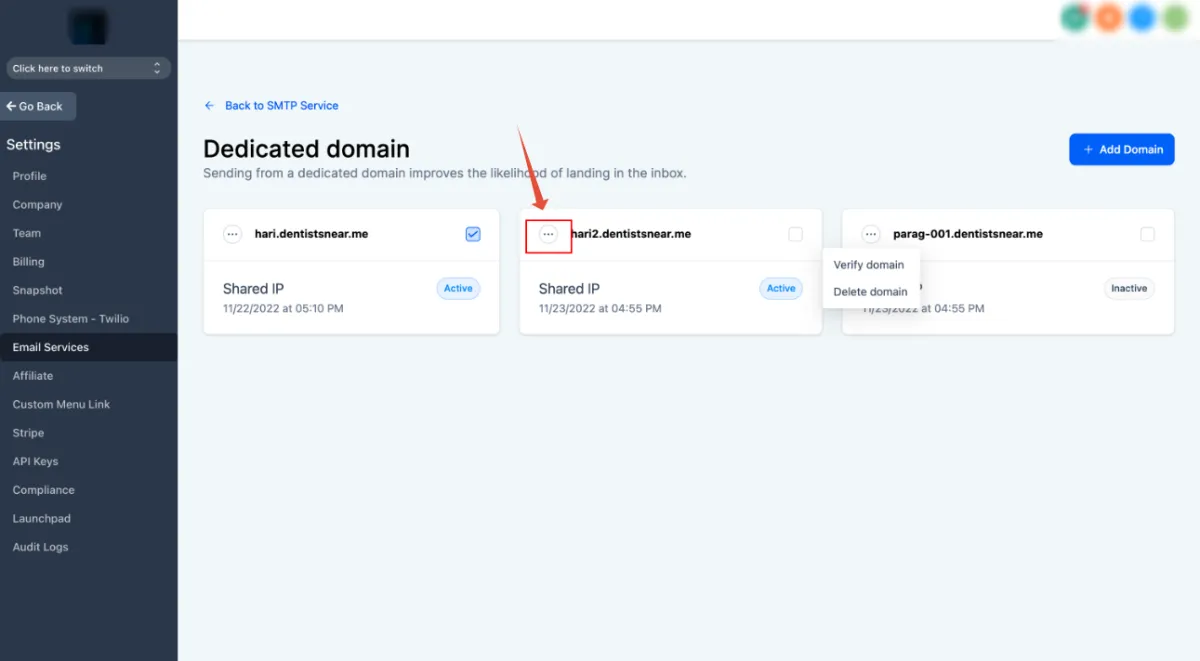
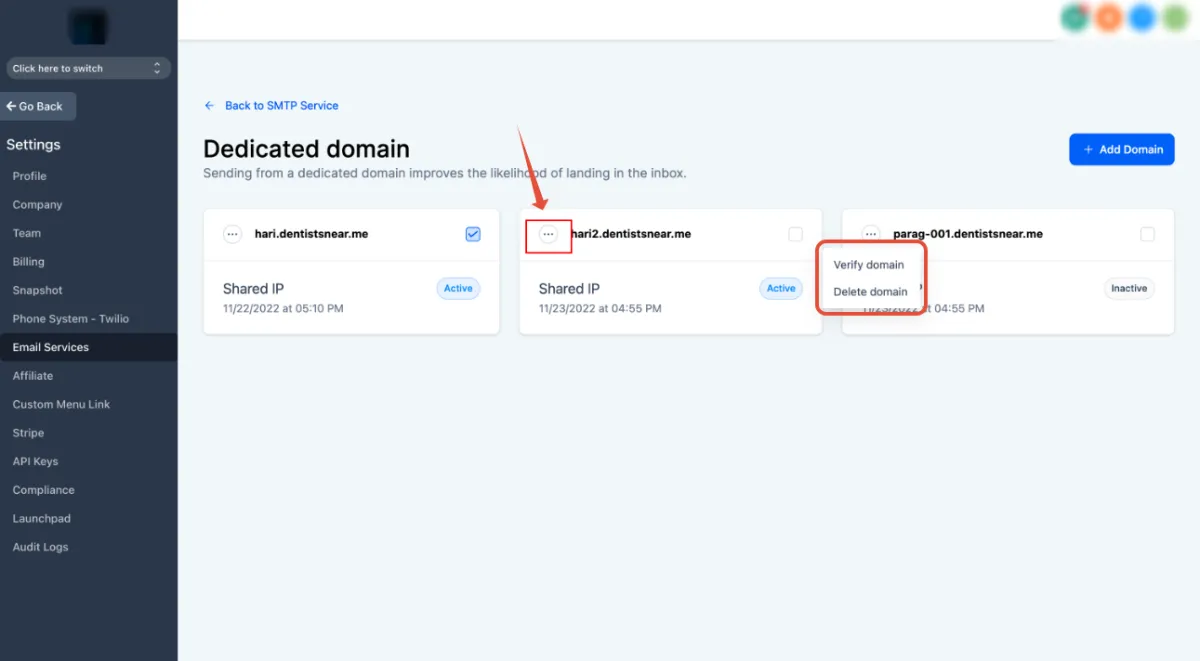
You will be able to see the same records and unverified records. once you have added all the records, click Verify button again, and this will generate an SSL certificate
How to delete a domain?
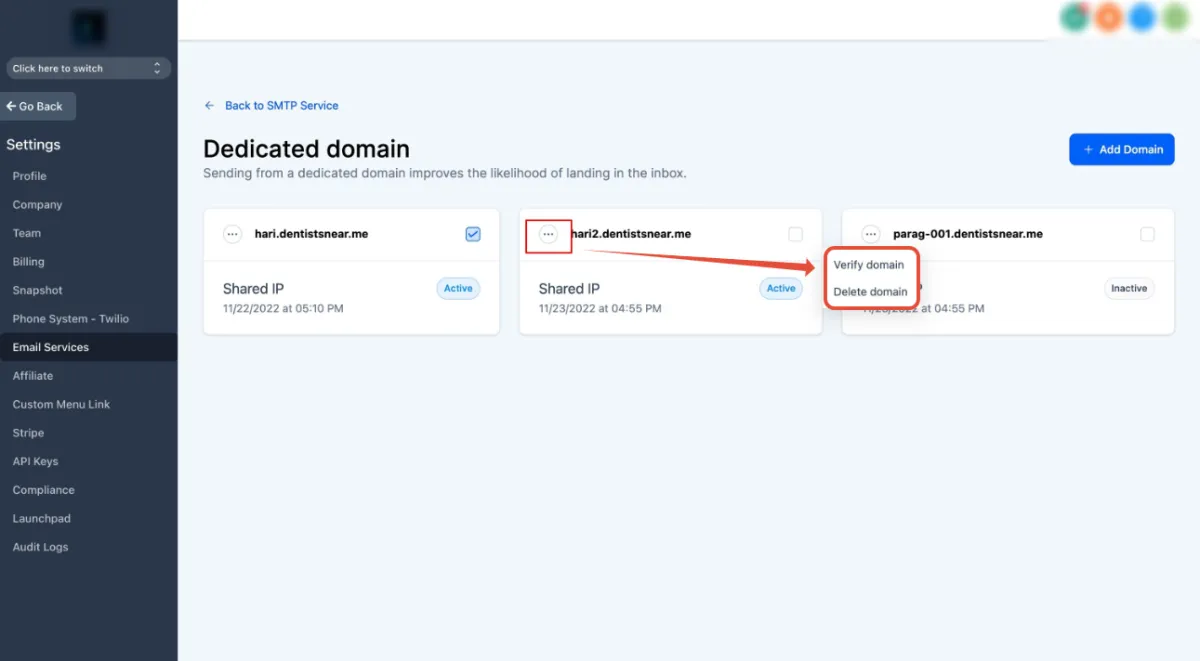
Navigate to Settings -> Email settings -> Domain services
Click on the three-dot and click the delete button.
How to set a dedicated domain as active/default?
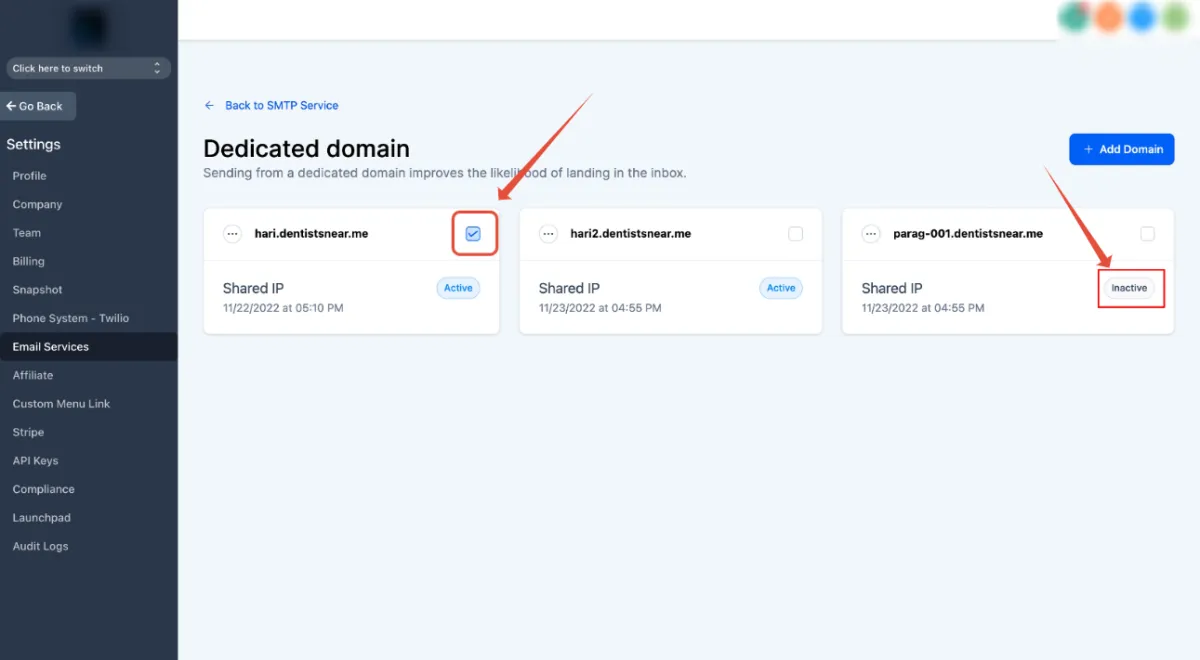
Check the checkbox to make as active/default.
While trying to add a dedicated domain, it says the domain is already pointing: 'Domain already pointing to email server!'
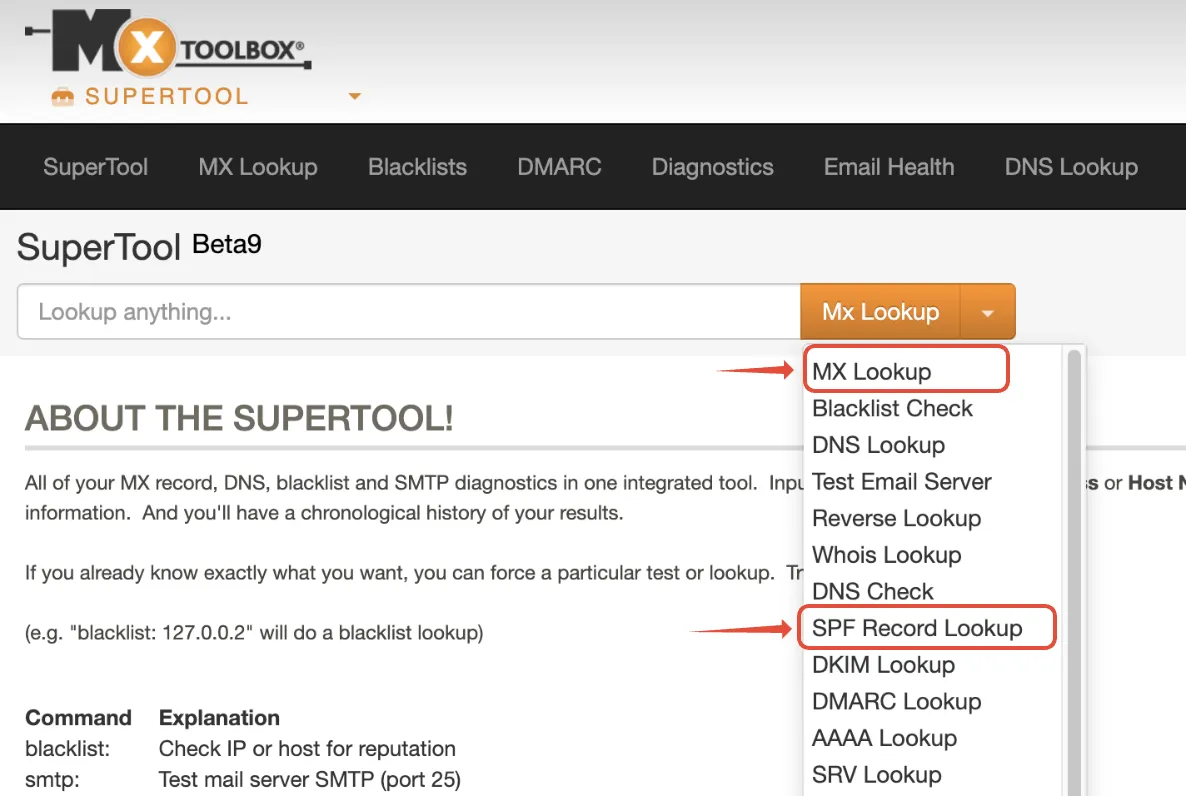
We can look up the domain MX and SPF record using
https://mxtoolbox.com/supertool3
Any MX or SPF records will cause the system to reject the domain, even if they are our records, so we will need to remove them.