Business Profile
This page will explain all of the elements of the business profile and tell you how to complete certain actions in the Business Profile area.
Covered in this Article:
What is the Business Profile?
Where Do I Find the Business Profile?
General Information
Business Physical Address
Business Information
Authorized Representative
General
Call & Voicemail Settings
Contact Duplication Preferences
Enable/Disable Depreciated Features
Missed Call Text Back
What is the Business Profile?
Your Business Profile is the section of your account settings where you can assign company data and configure settings that are applied across the entire account. Setting up this section, and spending a few minutes configuring the settings, is critical to the way your account operates.
To help you better understand all the components and elements within the Business Profile, we will be going through all the sections and settings one-by-one and explaining how to configure them and even giving you some use cases that will help you understand the outcome of each setting and configuration.
Where Do I Find the Business Profile?
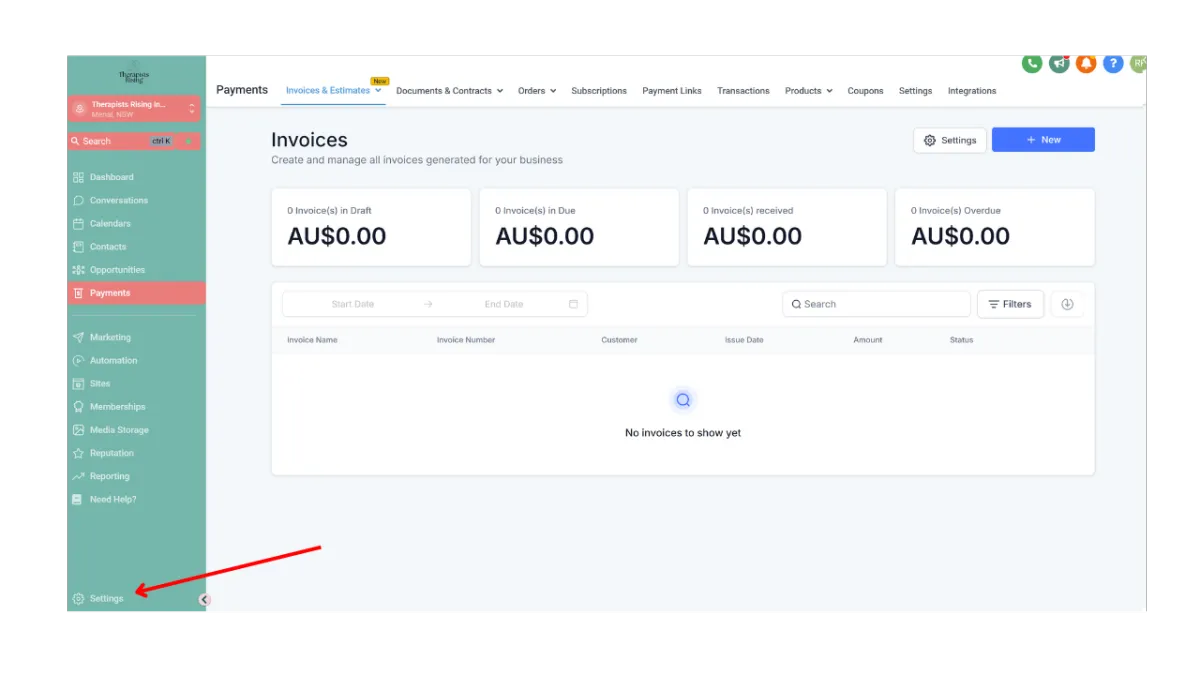
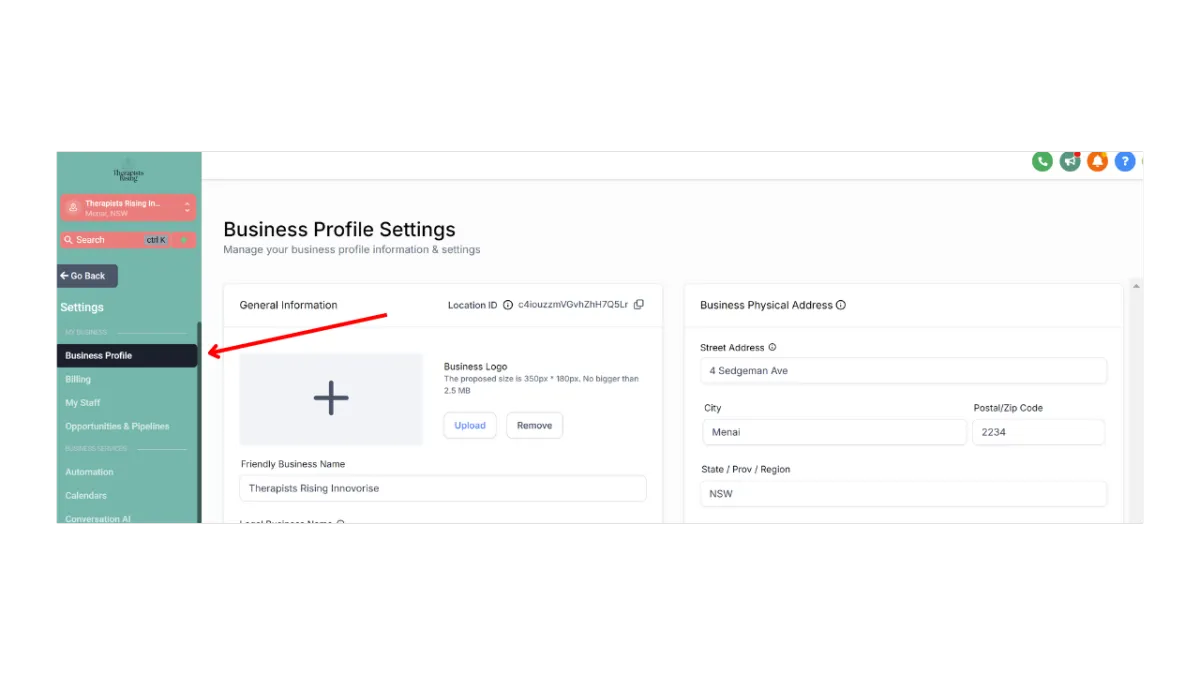
Navigating to your Business Profile is quick and easy! We have also provided some screenshots below to help you find your way if you are more of a visual learner!
Login to Innovorise
Click the SETTINGS navigation item on the left side of your screen
Once you are in SETTINGS, the BUSINESS PROFILE will be the first navigation button in the settings menu on the left-hand side of your screen.
The Business Profile is also the first page of settings by default, so once you click the SETTINGS button, you will automatically see the BUSINESS PROFILE.
General Information
Your account's General Information is very important. This information will be used in other areas of the system.
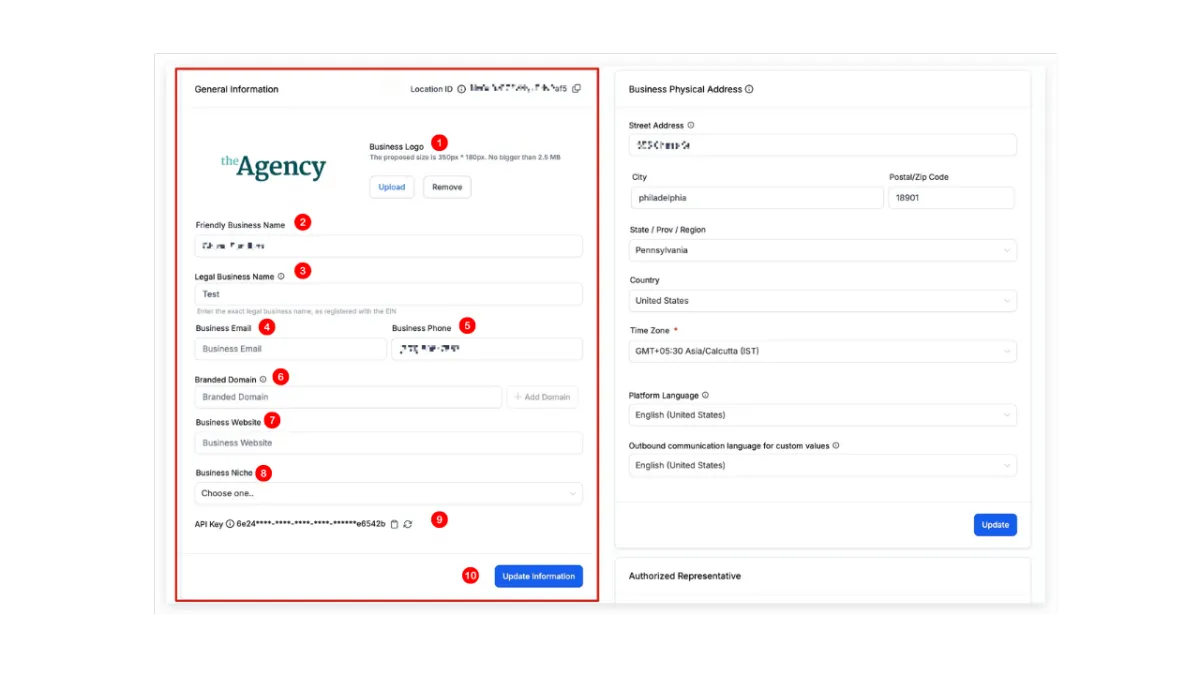
1.Business Logo
Upload the business logo you want to be associated with this account. The logo can be used across many features of Innovorise, including invoices and emails, and even as a Custom Field in messaging.
Example:
2.Friendly Business Name
This is the name that will be used for your account when using the Custom Field "Account -> Name" in messaging, workflows, and other areas across the app.
Example:
Therapists Rising Innovorise
3.Legal Business Name
The legal business name is the name that will be used in any future compliance registration. What you add here should perfectly match the business name as it is displayed on legal business documentation, such as your business license and registration paperwork.
4.Business Email
Enter the email you want to be used for this account when adding the Custom Field "Account -> Email" to messages, emails, workflows, or other areas in the app that allow for Custom Fields.
Example:
5.Business Phone
Enter the phone number you want to be used for this account when adding the Custom Field "Account -> Phone" to messages, emails, workflows, or other areas in the app that allow for Custom Fields.
Example:
0437 933 364
6.Branded Domain
Each account can create a "branded domain" by connecting to a sub-domain in their hosting provider. This branded domain will be used as the URL address for things like "Trigger Links", "Calendars", "Forms", "Surveys", and more.
7.Business Website
Enter the website URL you want to be used for this account when adding the Custom Field "Account -> Website" to messages, emails, workflows, or other areas in the app that allow for Custom Fields.
Example:
8.Business Niche
Assign a business niche to your saccount by choosing from the list in the dropdown. If you target multiple niches, choose the niche that best describes your target market.
9.API Key
API keys are used to connect 2 or more software applications together with the intention of sharing information and/or performing and action that requires the approval and validation of the software applications involved.
For example, when you create a Zap in Zapier, you are just connecting to the API of different software applications. Zapier just makes this a clean and "pretty" experience for the end user, but underneath all the cool looking software that Zapier provides is just a bunch of API keys connecting to each other depending on how you configure your Zaps.
Your account API Key can be used when connecting to Zapier and other applications that may require an API key to send or receive information to or from any specific account.
10.Update Information Button
When you're all finished updating your General Information, make sure to save!
Business Physical Address
Your Business Physical Address is a very important component of your Business Profile. This information not only can be used when verifying your business for certain features that may need verification, but it can also be used when adding Custom Fields and Custom Values in messages, social posts, email campaigns, websites, and even funnels.
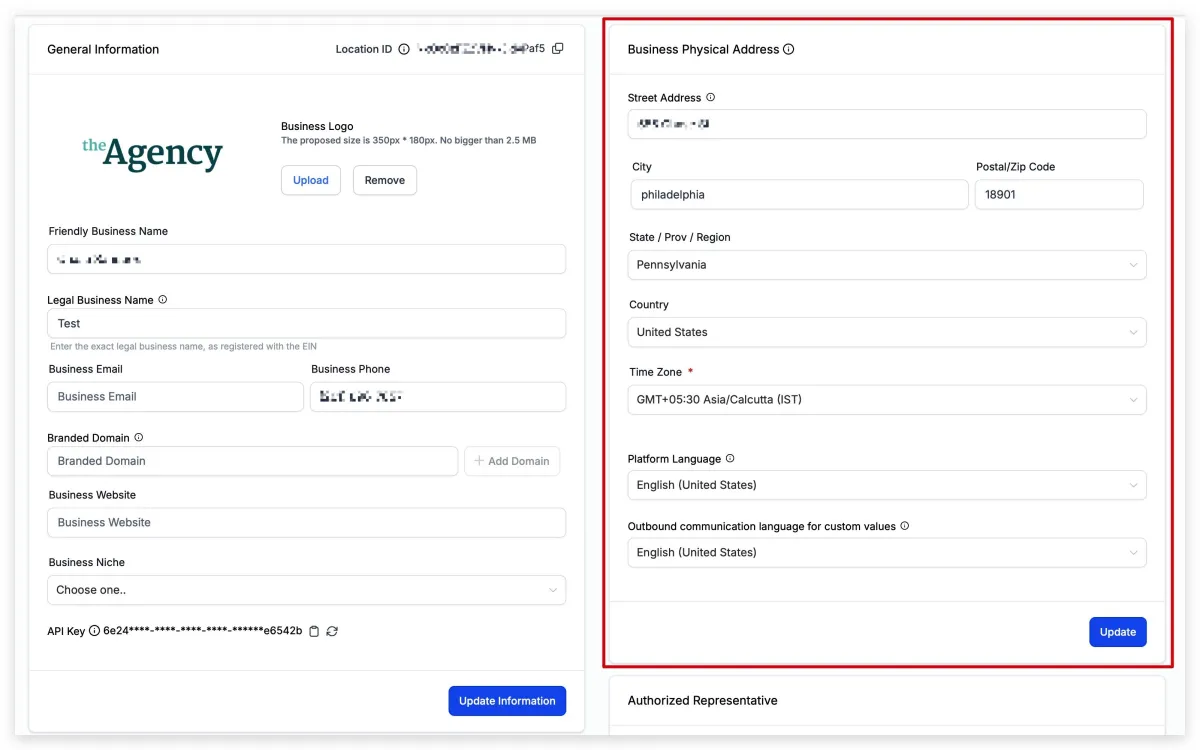
The Business Physical Address should match the address on your business registration. This information may be used to verify your business if needed.
Time Zone
Automated events within campaigns work with this field to determine when to send. You may be able to override this default timezone setting depending on the feature being used, such as workflows or email campaigns. Always check your business profile settings and the settings of the feature being used to make sure the correct time zone is selected.

Platform Language
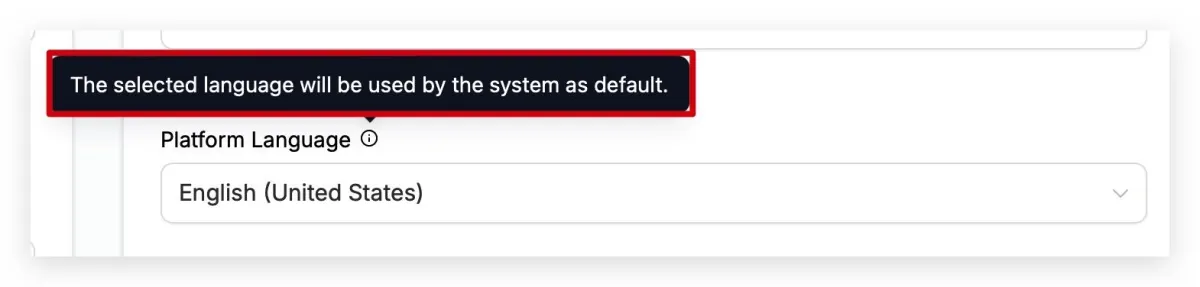
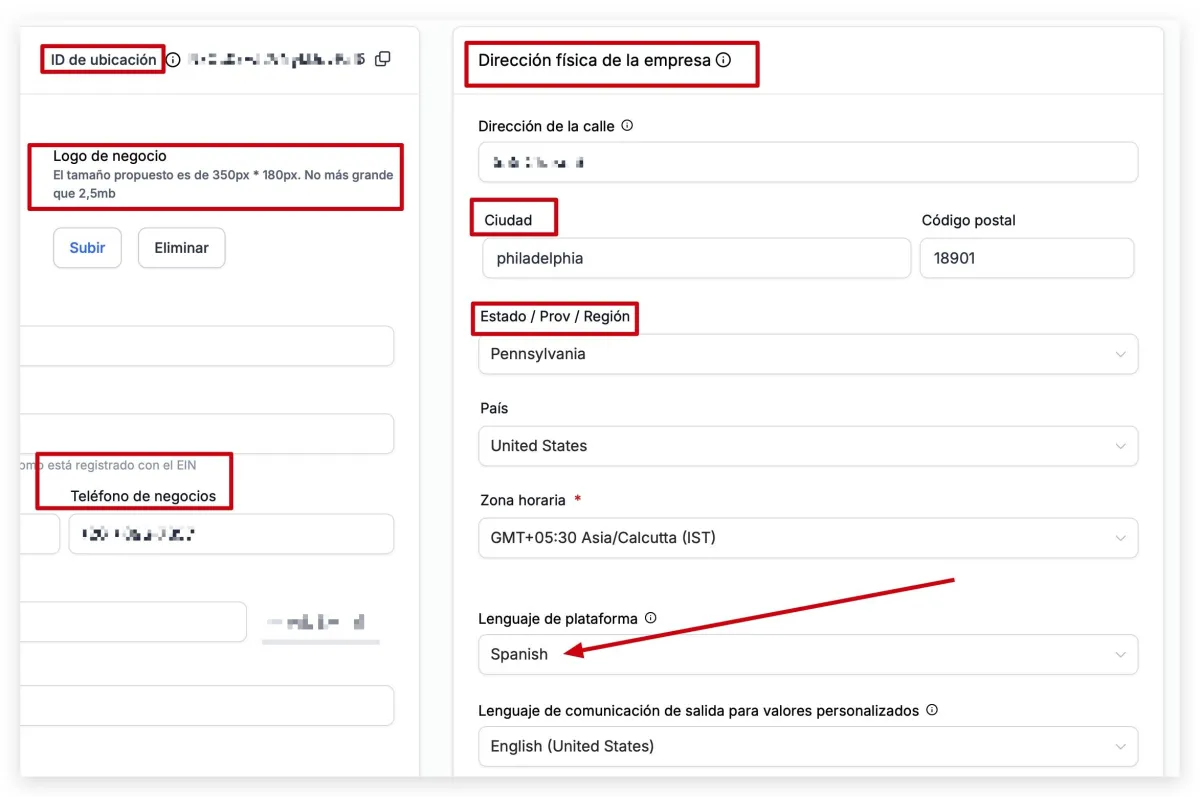
This setting controls what language your account displays in. Meaning, if you speak and read English, you would want your Innovorise account to be displayed in English. If you speak and read Spanish, you would most likely want your account to be displayed in Spanish.
You can see in the example below that we changed the "Platform Language" to Spanish, and all of the text in the application is now showing in Spanish
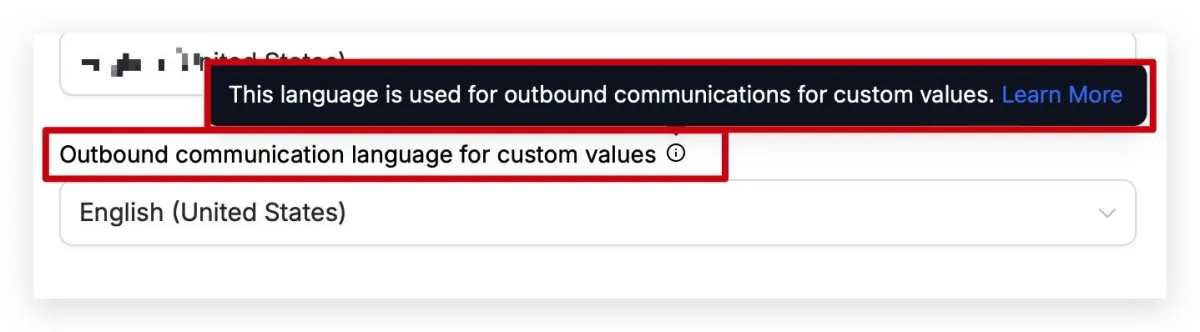
Outbound Communication Language for Custom Values
When you are sending Custom Fields and Custom Values in messages, Innovorise needs to know how you want that information to be displayed to the person or persons receiving the message. Selecting the proper language here will make sure that when you send a message with Custom Fields or Custom Values, or use Custom Fields and Custom Values anywhere else such as in websites and funnels, that the correct language is being displayed.
To see a list of the Custom Fields and Custom Values that are affected by this setting, take a look below. Scroll to the right to see all the variations when they are changed by a new default language.
Supported Languages:
English
English(Country Specific)
Dutch
French
German
Hungarian
Italian
Polish
Portuguese (Brazil)
Portuguese (Portugal)
Spanish
Danish
Below is a list of custom fields and custom values that are affected by changing the language in this setting. Please be aware that more may be added and affected in the future. We will do our best to update this list as needed:
12:8
1
Tuesday
9
September
09/01/2026
01/09/2026
12
12
35
Business Information
Filling out this section with information about your business is very important. This information includes things like your registration type and number and your regions of operations. Running a legitimate and registered business can be the difference between getting approved or denied when submitting for approval to send SMS messages.
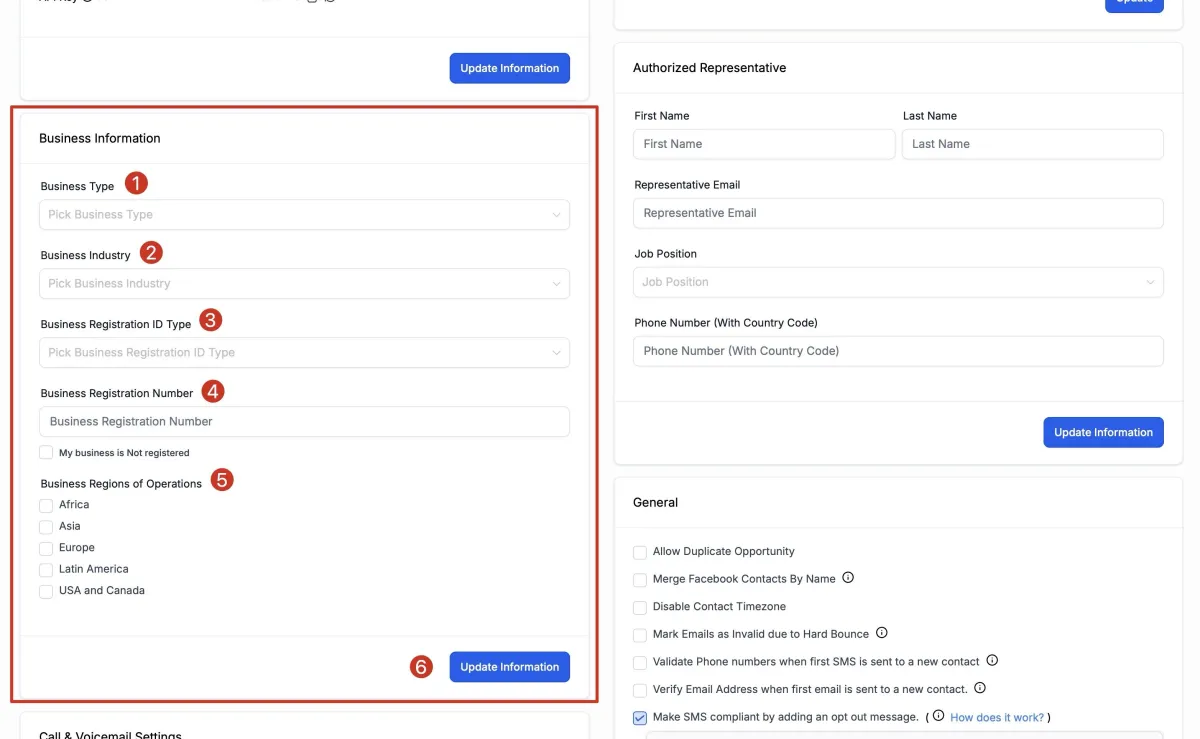
1.Business Type
Select the type of business you created. The drop-down will give you the following options to choose from:
Co-operative
Corporation
Limited Liability Company (LLC) or Sole-Proprietorship
Non-profit Corporation
Partnership.
2.Business Industry
Select the industry that you primarily serve. We understand that you may serve many different industries, but please select the one that best describes or most describes your target market.
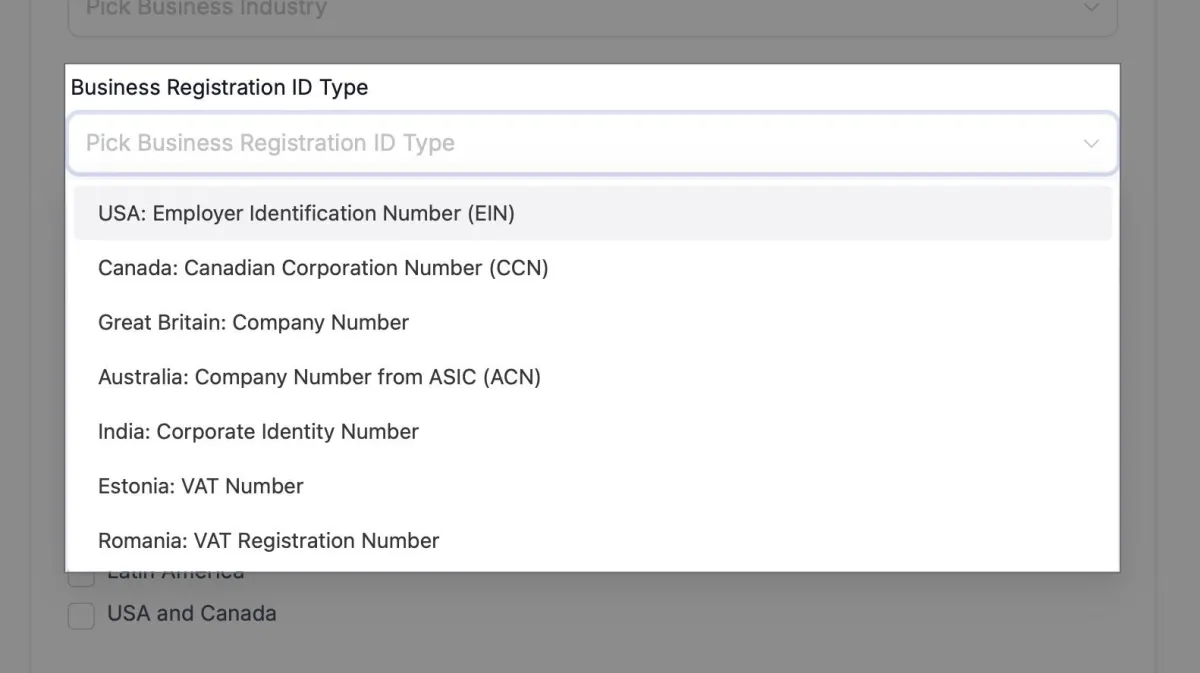
3.Business Registration ID Type
Select your business' registration type. If you are in the United States, you most likely will have an EIN unless you incorporated your business in a different country.
4.Business Registration Number
After you select your business's type of registration, you can add your registration number here.
5.Business Regions of Operations
Select the regions your business operates in. If you are a global company, select the regions that you do most of your sales in. This is a multi-select setting, so you are able to choose more than one region.
6.Update Information
Make sure you always click the update button after making changes so that your changes are properly saved.
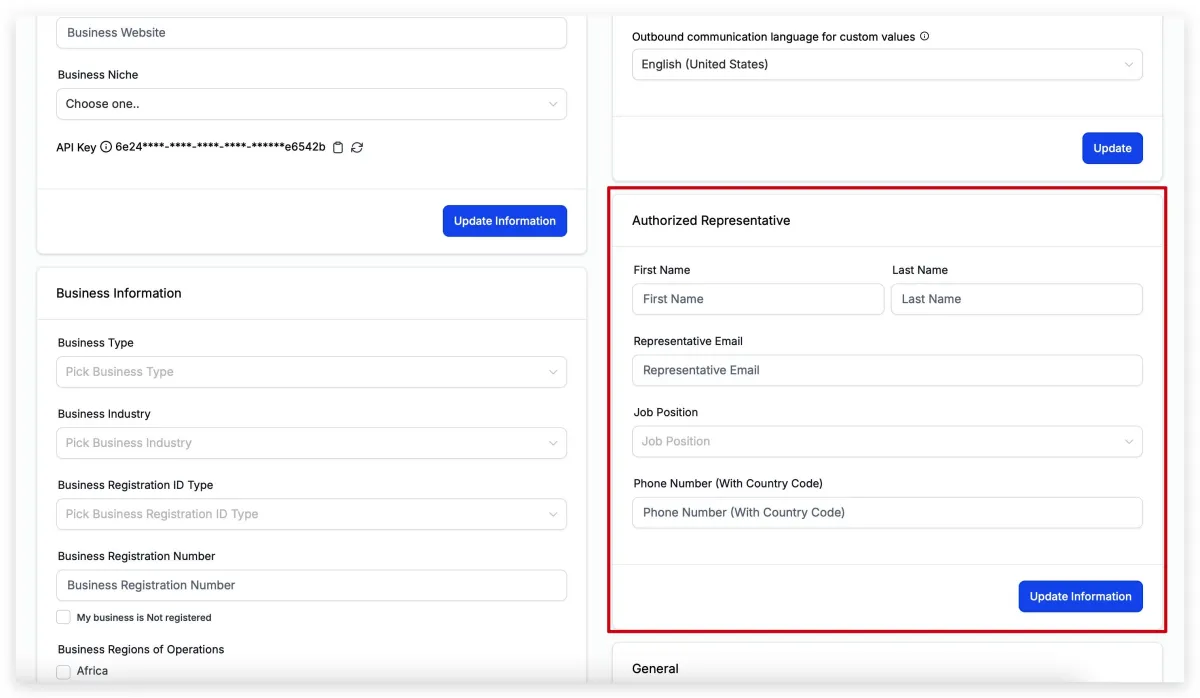
Authorized Representative
If your business has an authorized representative, please add their information here. If you are the authorized representative, please add your own information here.
General
This section of your Business Profile is incredibly important so we will break down each section one by one below. Make sure you pay close attention to these settings as they can have significant effects on your account. You may experience something in the CONTACTS section, not know how to fix it, and then come look at these settings and realise you turned on or turned off something that should or shouldn't have been.
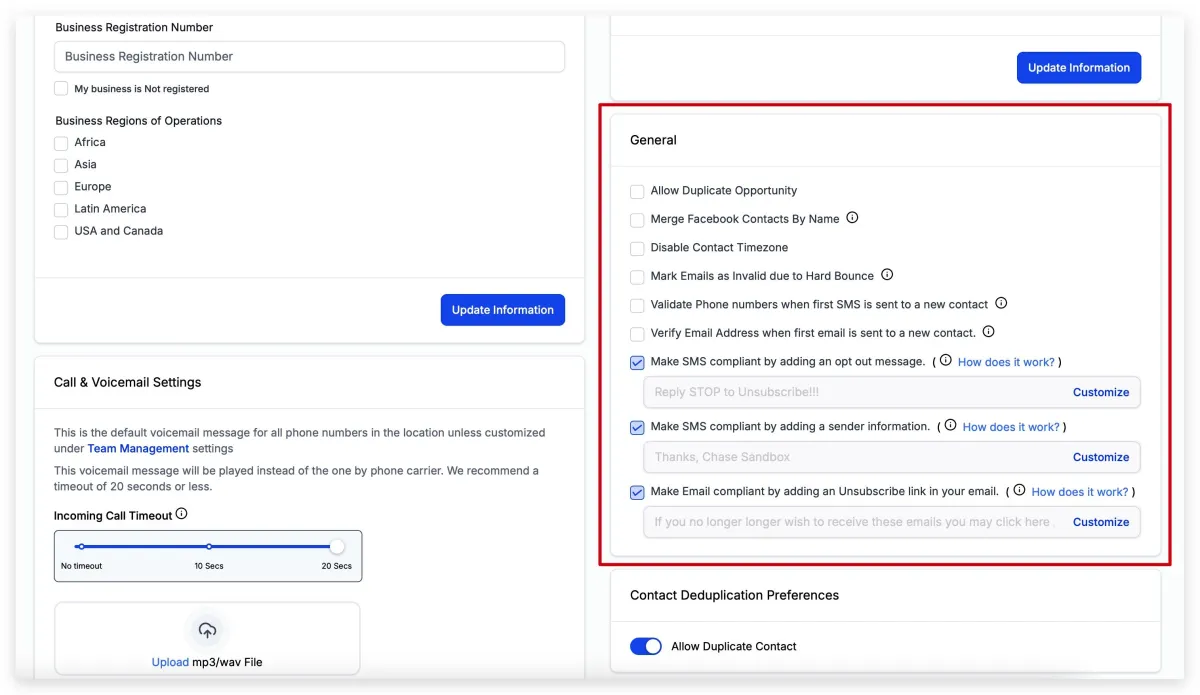
Allow Duplicate Opportunity
Turning this feature "ON" will allow duplicate opportunities to be created in the same pipeline. If this is turned "ON", new opportunities will be created in the same pipeline instead of an opportunity moving from one pipeline stage to another.
In certain scenarios or use cases, this can be very useful, even necessary.
Merge Facebook Contacts by Name
When contacts message your company from Facebook Messenger, a brand new contact will be created in your system. This is because Facebook only sends us the user's name, not their phone number or email address.
If you want to keep your contact lists clean and organized and add to contacts who reach out via Facebook, you can turn this feature on. messaging chann Innovorise will merge contacts with the same name as a contact who messages you from Facebook.
Disable Contact Timezone
Using your contact's timezone for various features can be critical. Let's say you are sending emails at 8 am EST, but your customer is located in California (PST), which would be 3 hours behind. You would be sending that same email at 5 am PST if you DID NOT make sure the contact's timezone was considered in the sending process.
If there is a reason why you don't need to use the contact's specific time zone, you can use this feature to turn off any recognition of the contact's timezone and only use the timezone assigned in the account.
Mark Emails as Invalid due to Hard Bounce
Innovorise gives you the ability to "validate" email addresses for contacts, and using this feature, you can mark email addresses as "Invalid" if there is ever a hard bounce event when sending an email. This feature can help you cut costs by not sending emails to contacts when they are hard bouncing over and over.
NOTE:
Email actions in workflows will be automatically skipped when the address is marked as "Invalid"
Hard Bounce (as defined by Google): A Hard Bounce is an email that has failed to deliver for permanent reasons, such as the recipient's address is invalid (either because the domain name is incorrect, isn't real, or the recipient is unknown.)
Validate Phone Numbers when First SMS is Sent to a New Contact
This feature will automatically attempt to validate a contact's phone number when you attempt send the very first SMS message to a new phone number in your account. If the phone number is marked as "Invalid", the SMS message will not be sent, and you will need to validate the phone number before being able to send SMS messages to this contact in the future.
Validating Phone Numbers is a paid feature please reach out to us to if you would like to turn this on
Verify Email Address when First Email is Sent to a New Contact
Similar to validating phone numbers, this feature allows you to attempt to verify an email address when it's the first email sent to any new email address is your account. If the email address is marked as "Invalid", the email will not be sent, and you will need to verify the email address before being able to send emails to that contact in the future.
Validating Email Address is a paid feature please reach out to us to if you would like to turn this on
Make SMS Compliant by Adding an Opt-Out Message
SMS compliance is incredibly important and needs to be taken very seriously. That is why Innovorise automatically configures "Opt-Out" messaging in all of account by default. You can configure these opt-out messages and even turn them off (which we do not recommend), but to get you and your customers started, we make sure that this setting is turned on and configured by default in all accounts.
Make SMS Compliant by Adding Sender Information
Just like opt-out messaging being very important, making sure the "sender information" is in the SMS message is another very important factor in SMS compliance.
You can configure the sender information and even turn it off (which we do not recommend), but to get you and your customers started, we make sure that this setting is turned on and configured by default in all accounts.
Make Email Compliant by Adding an Unsubscribe Link in Your Emails
New laws are being passed all the time around sending emails in order to keep consumers safe and their information secure.
That is why Innovorise automatically configures your email unsubscribe link in all of accounts by default.
You can configure the unsubscribe link and even turn it off (which we do not recommend), but to get you and your customers started, we make sure that this setting is turned on and configured by default in all accounts.
Contact Duplication Preferences
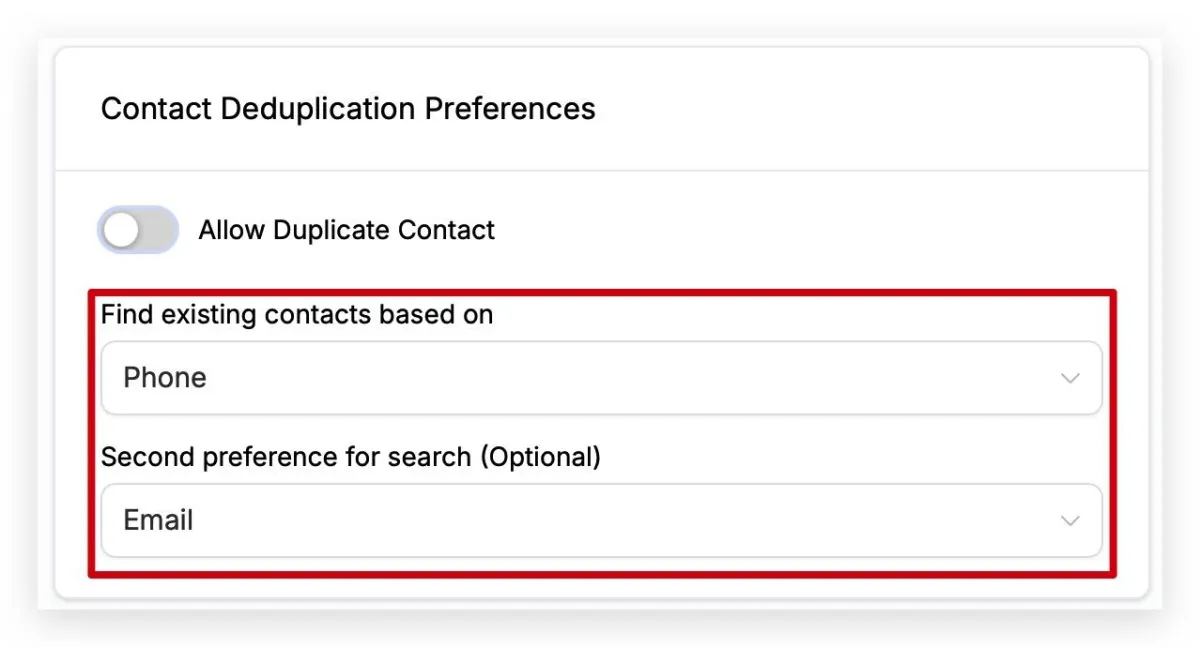
This setting allows you to control how your account treats duplicate contacts. If you want to "Allow Duplicate Contacts", you would toggle this setting into the ON position. If you DO NOT want duplicate contacts, you would toggle this setting to the OFF position.
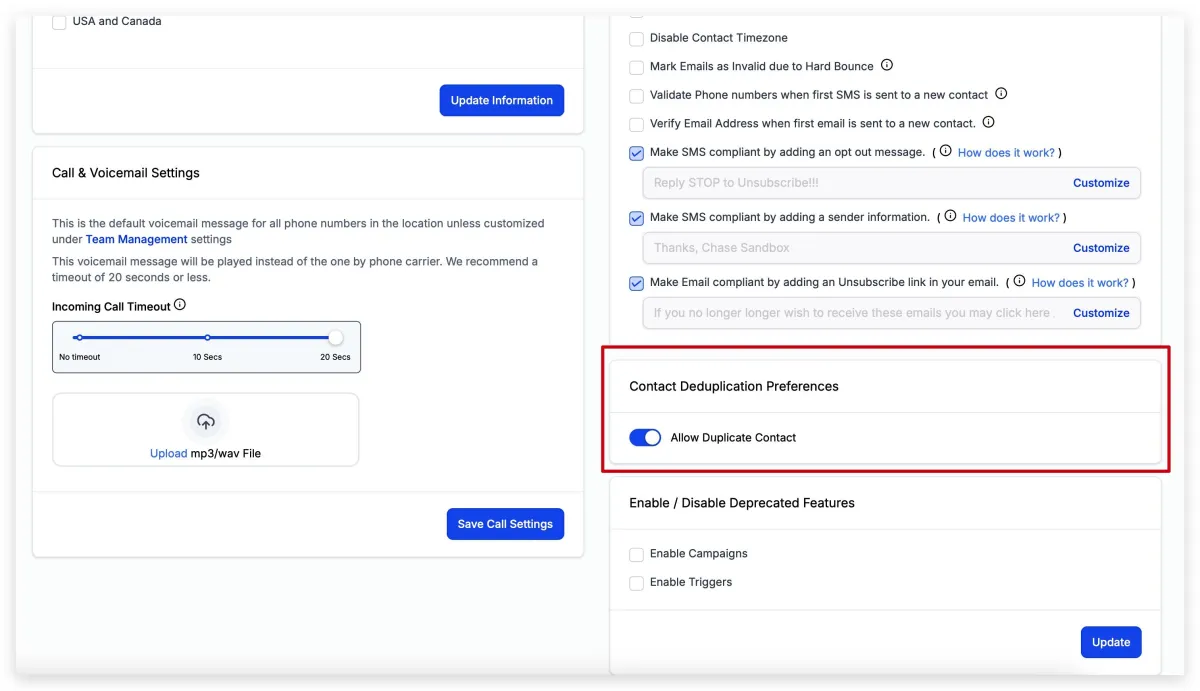
If you choose to toggle this setting OFF, you will be presented with options to adjust exactly how your Innovorise account looks for duplicate contacts. You can look for EMAIL or PHONE numbers first when determining if a contact is a duplicate, and if you want another layer of confirmation, you can also select a secondary determining factor.